What’s New in Optix: March 2026
Learn about what we've added to the Optix platform in March 2026
April 1, 2026
March was about giving you more from your automations, more from your bookings, and more clarity over how your space runs. From new Automation templates, to bundling equipment and services directly into any booking, to seeing your entire resource schedule from a single view, these updates reach across more of the day-to-day.
Let’s take a look at what we’ve added to Optix in March!
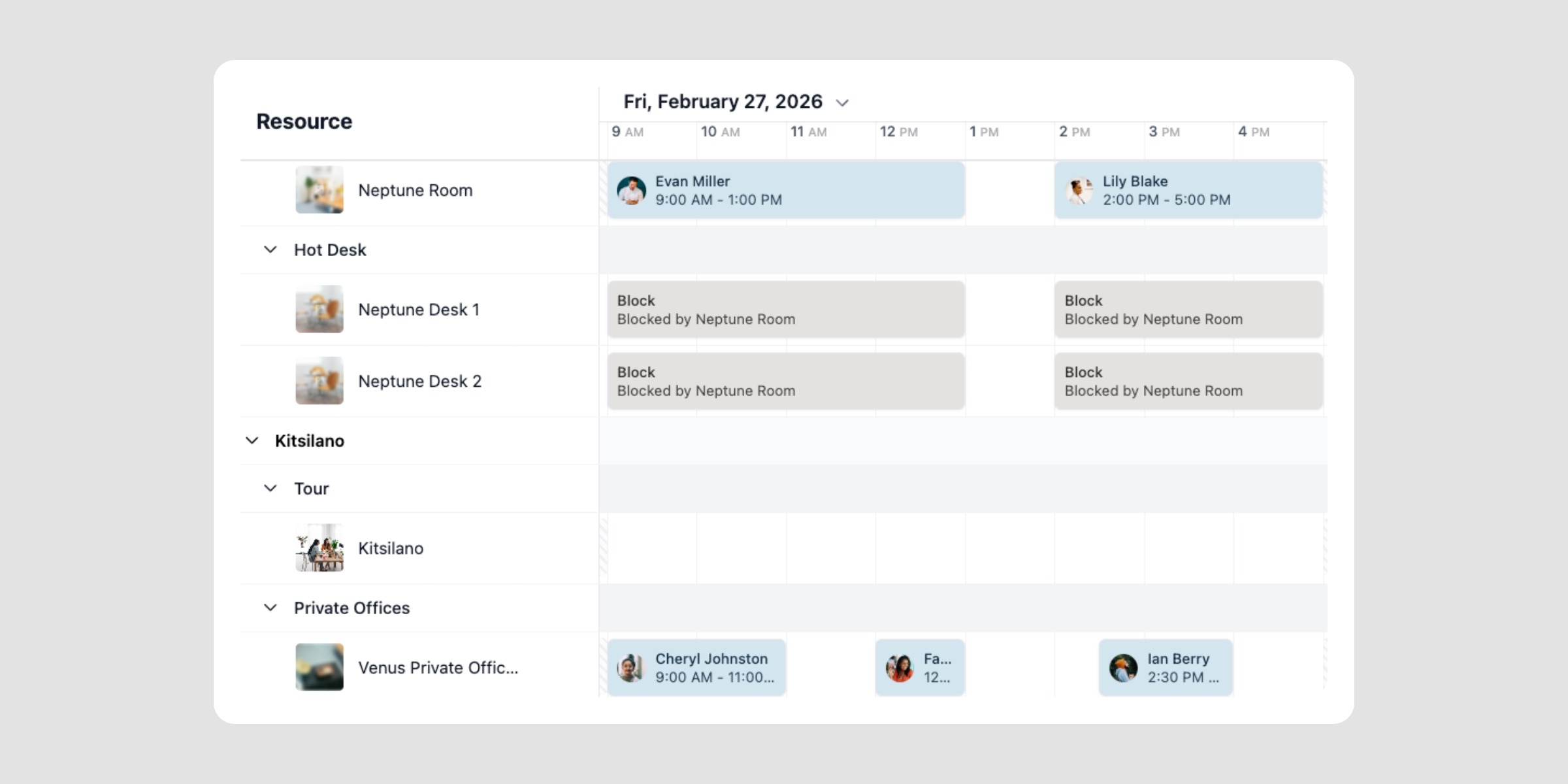
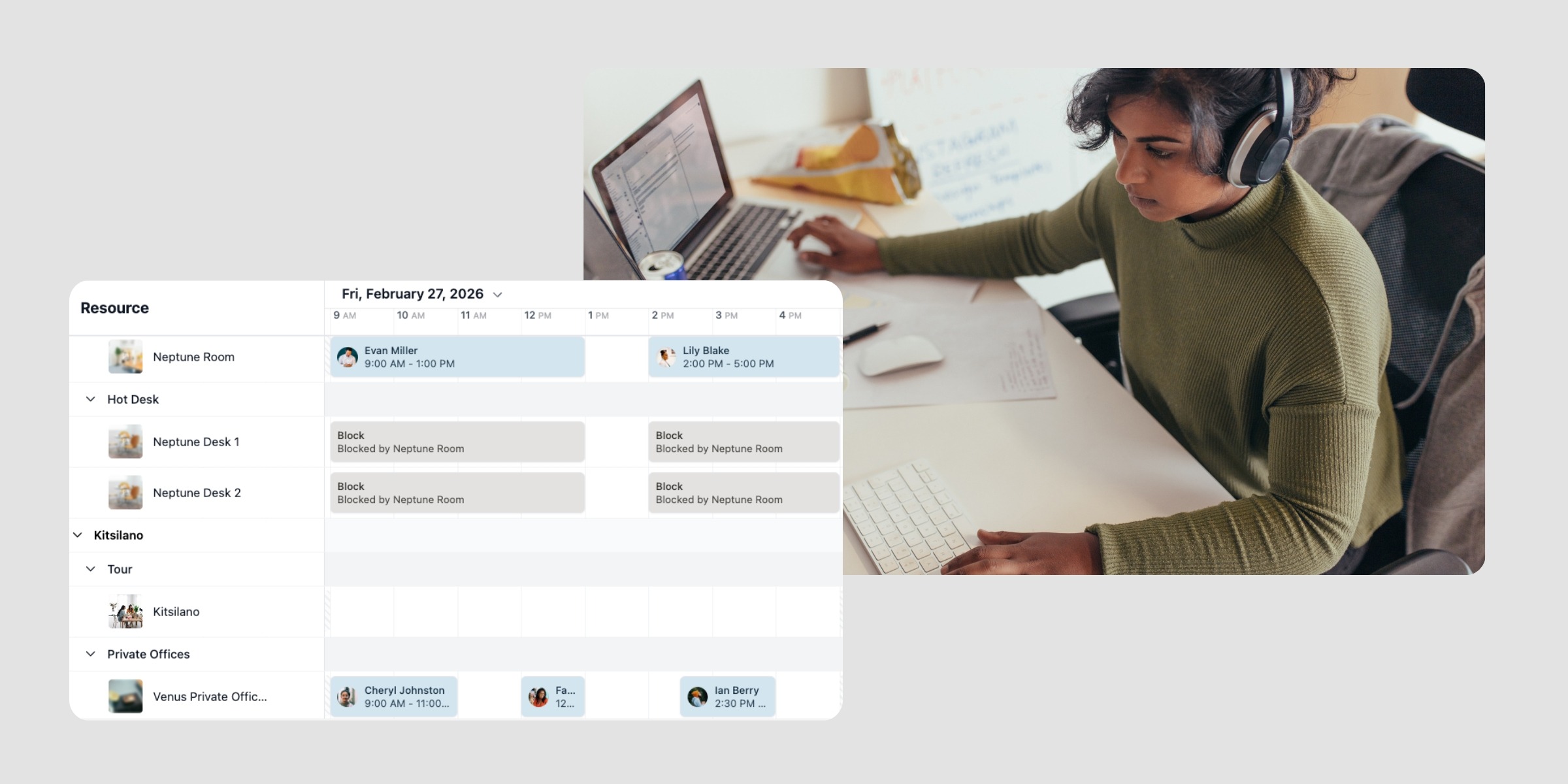
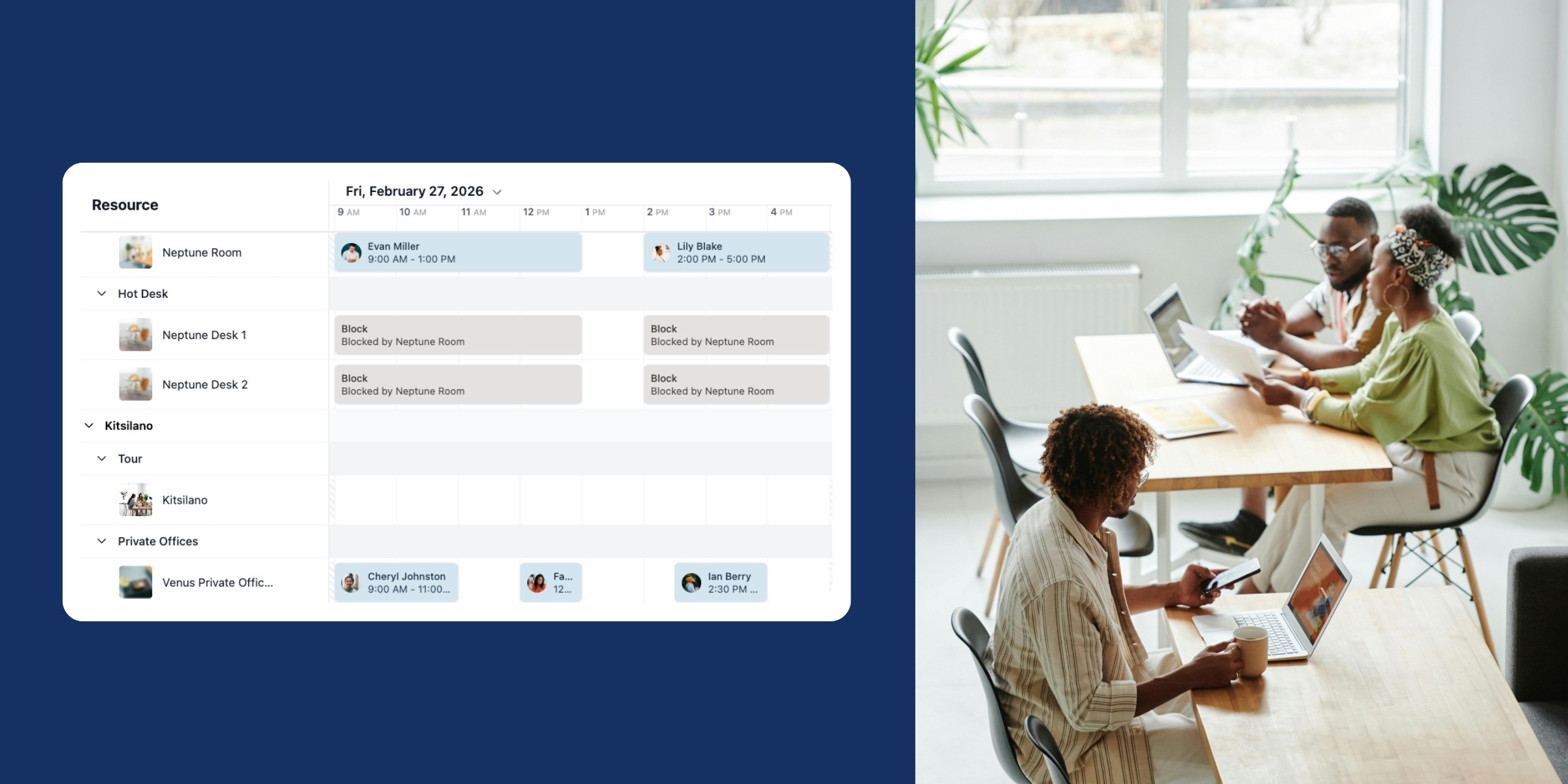
Timeline is a new scheduling view now available in your Dashboard. Where the standard calendar organizes around individual events, Timeline organizes around your resources: each bookable space gets its own row, with bookings, assignments, tours, and blocks displayed across the day in a single view.
With Timeline, you can:
Timeline is now in open beta for all Optix clients.
Read the full Introducing: Timeline post to learn more →
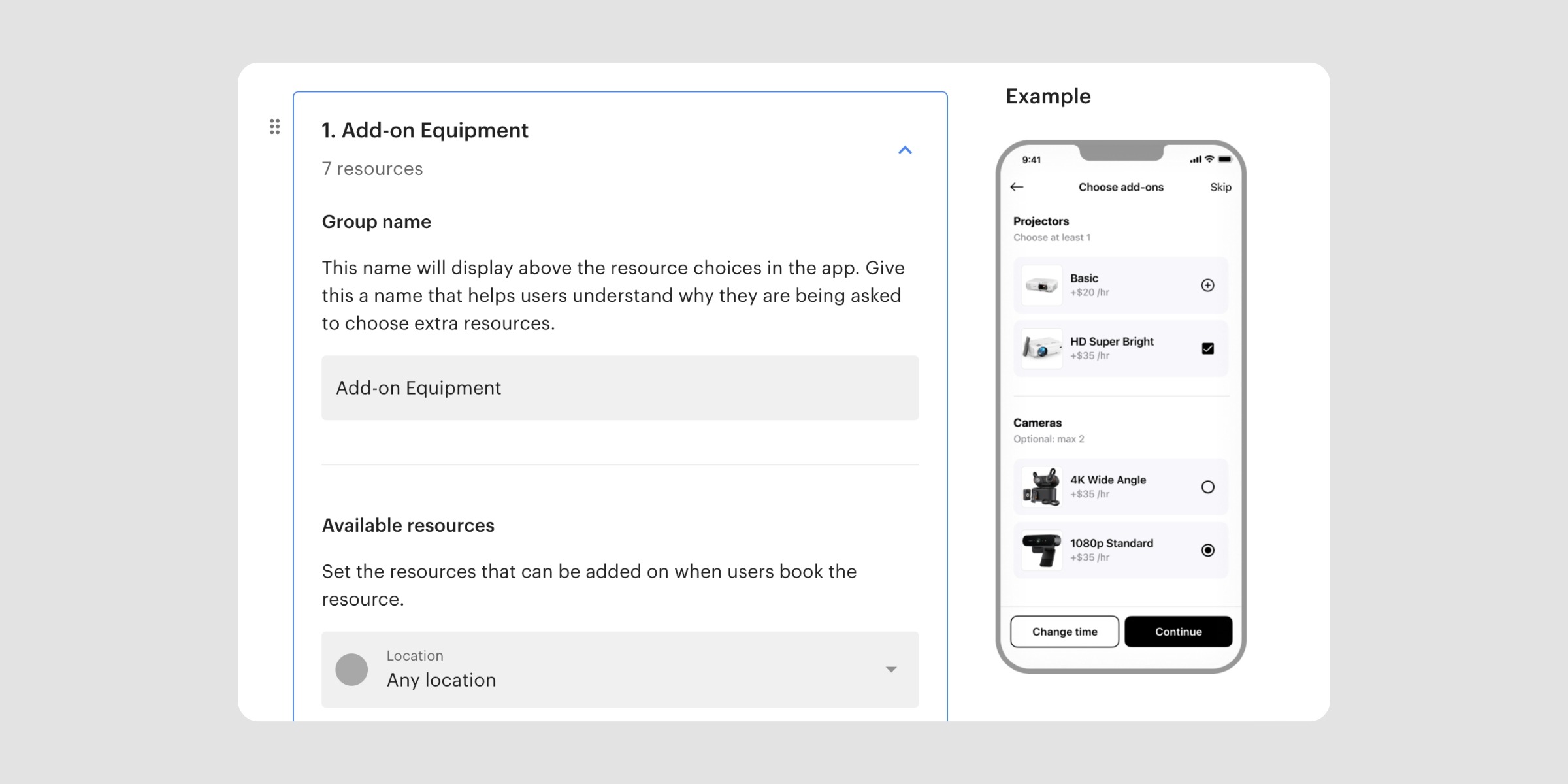
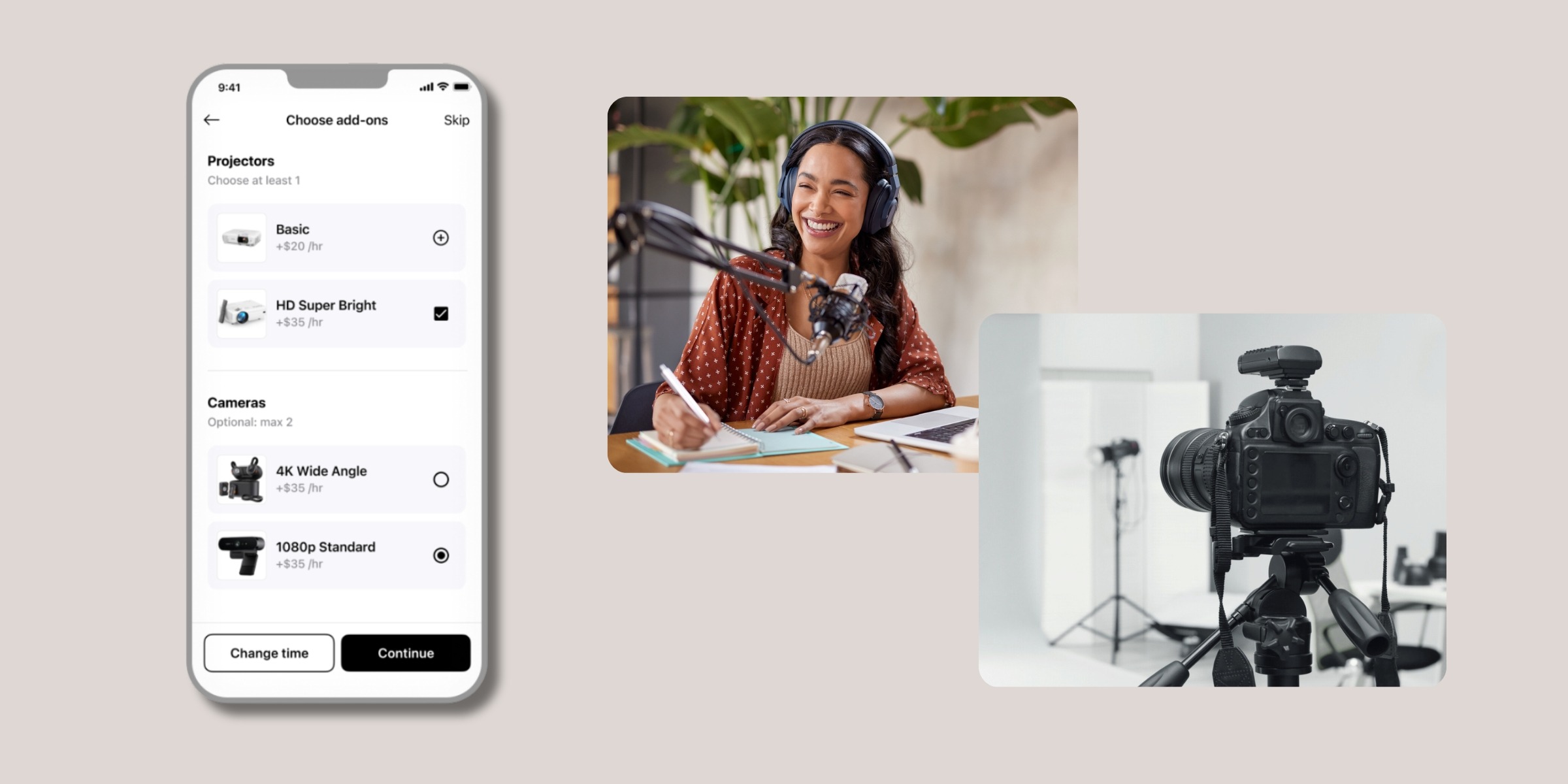
Add-on Resources lets you attach equipment, services, and extras directly to any bookable resource in your space. When a member books a resource with add-ons attached, they see and select them as part of the same booking flow.
With Add-on Resources, you can:
Read the full Introducing: Add-on Resources post to learn more →
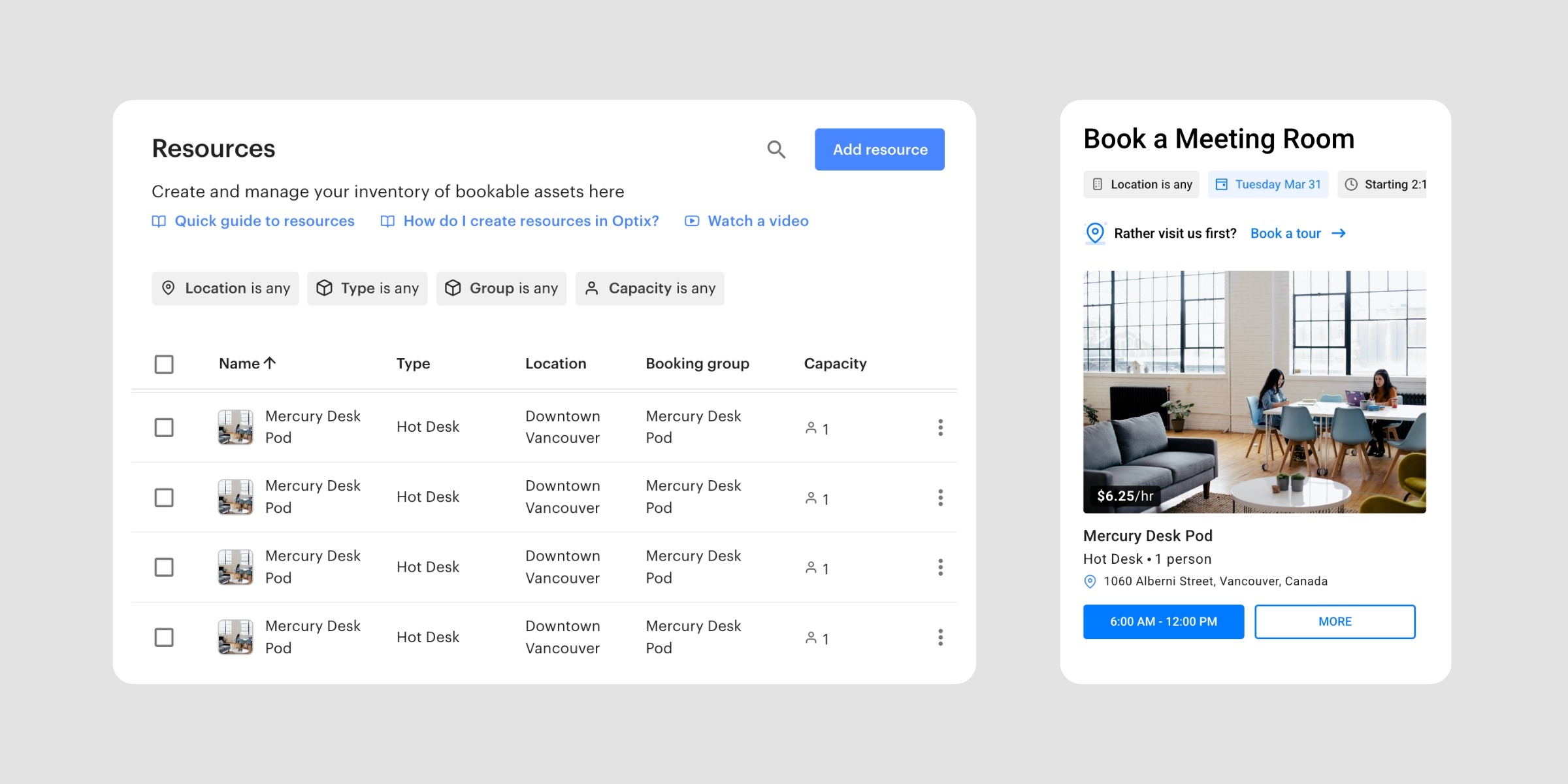
The Drop-in Booking Widget now handles non-specific resource types more cleanly. Previously, members booking resources like day passes or hot desks would see a long list of identical options, one row per individual resource of that type.
Now, the widget shows one best-available option per resource type. If you’ve set up resource groups, members will see one option per group instead.
With this update, you can:
Learn more about non-specific bookings in the Drop-in Booking Widget →
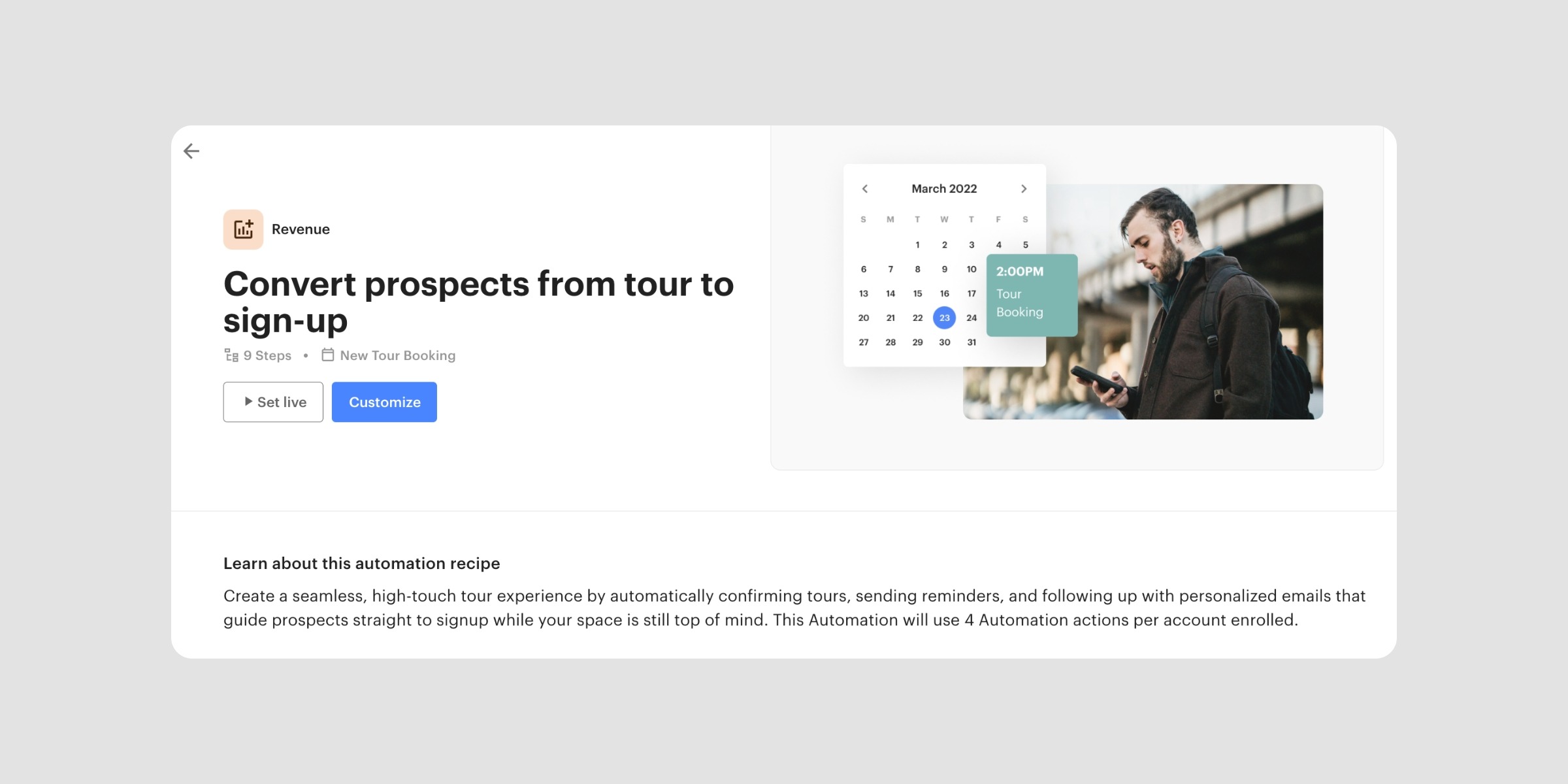
A new pre-built automation template is now available in your Automations+ library: Convert Prospects From Tour to Sign-Up. It covers the full sequence from tour confirmation through to post-visit follow-up.
With this template, you can:
For operators running tours as part of their sales process, this template handles the follow-through automatically. Find it in your Automations+ Templates library.
Learn more about Automations Templates →
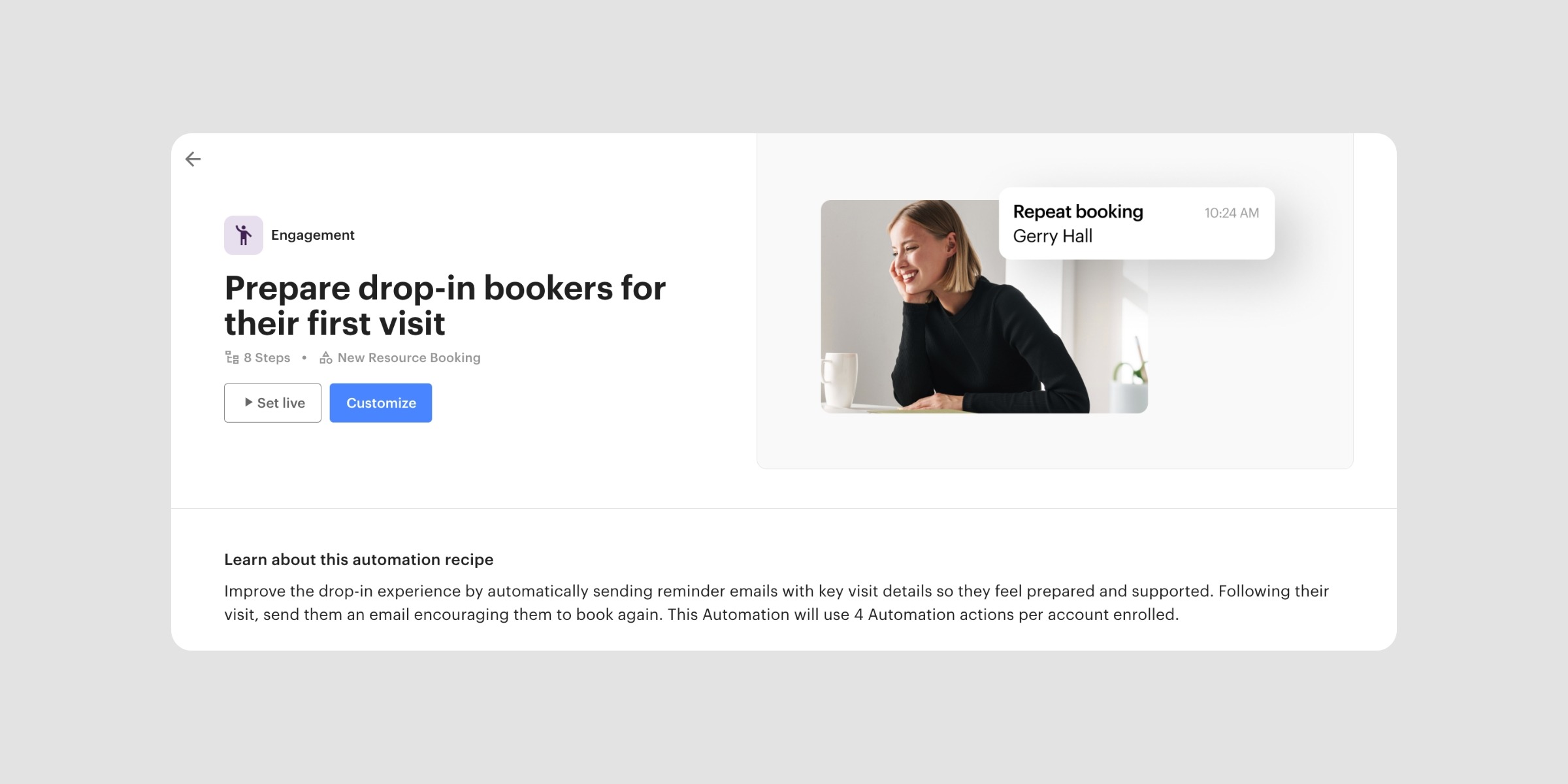
Also new in your Automations+ library: Prepare Drop-In Bookers for Their First Visit and Encourage Them to Book Again. This template is designed to reduce no-shows and drive repeat drop-in bookings.
With this template, you can:
Find it in your Automations+ Templates library alongside the tour template above.
Learn more about Automations Templates →
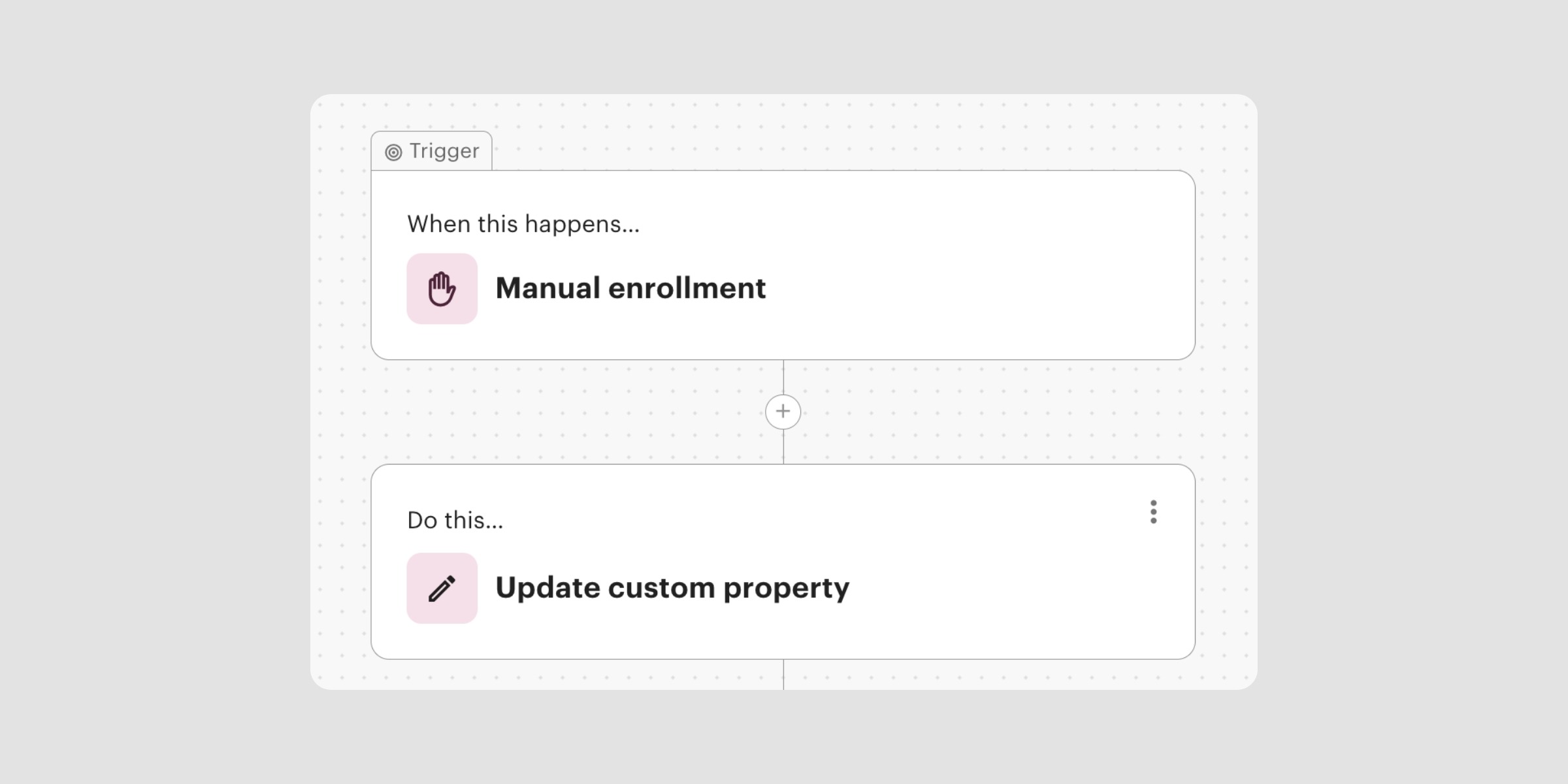
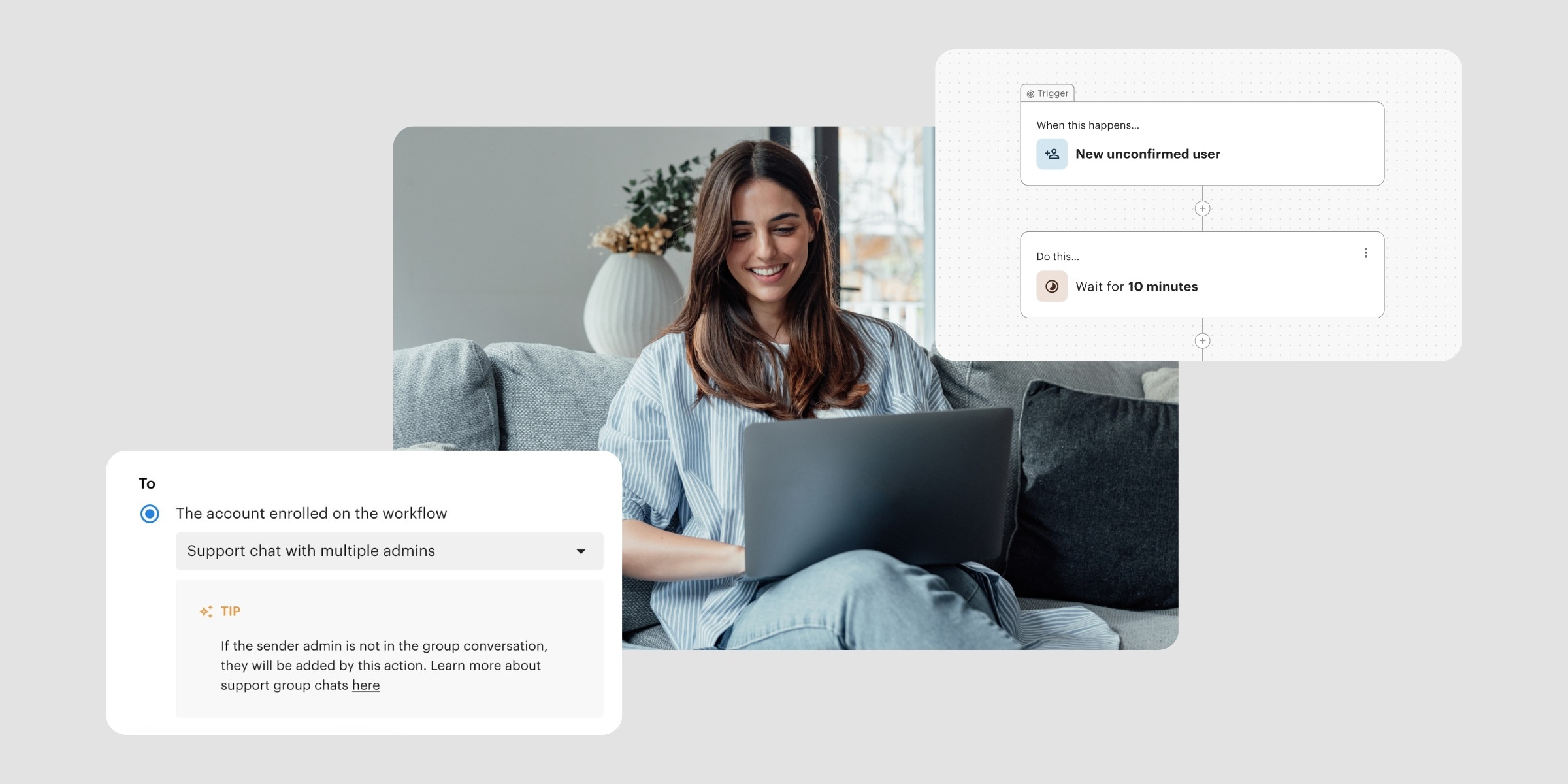
You can now add a new action step to your automation workflows: Update custom property. This action sets any existing custom property on a member account to a fixed value, automatically, as part of a running automation.
Available on Pro plans and above, the action supports all five custom property types: date, numerical, text, single option, and multi-option.
With custom property updates, you can:
Learn more about updating custom properties in automations →
From custom property actions to new templates in your Automations+ library, reflect where we’re focused: giving you more connected, more automated workflows so your space runs with less manual effort. More updates are on the way.
Subscribe to our newsletter to stay up to date with what’s new in Optix.