What’s New in Optix: January 2026
Learn about what we've added to the Optix platform in January 2026
January 2, 2026
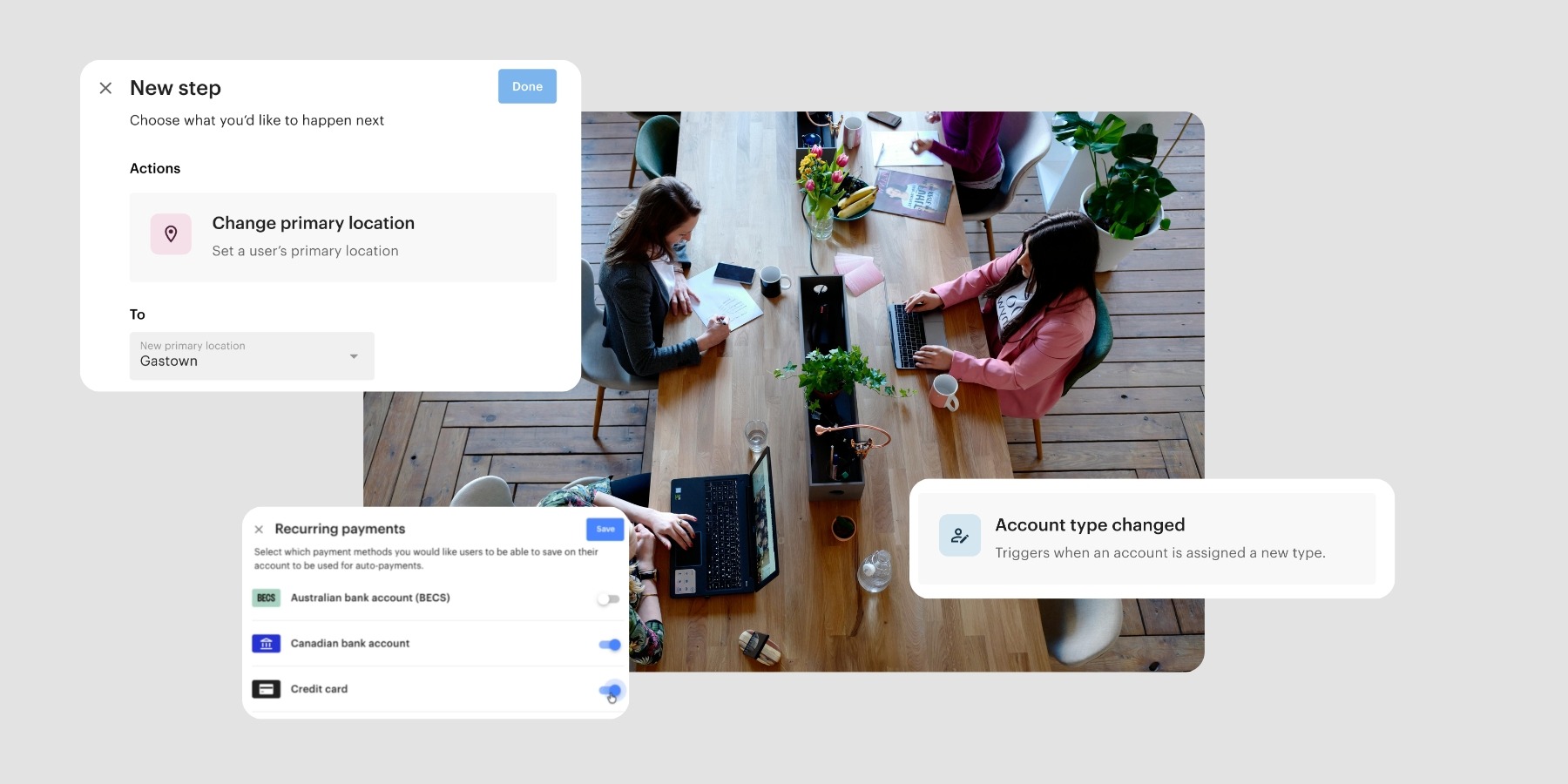
January brings smarter, more connected workflows to Optix. From triggering Automations via Zapier to running custom workflows when account types change, this month’s updates help you automate more, manage member transitions with less manual work, and give you greater control over payments and document workflows.
Let’s take a look at what we’ve added to Optix in January!
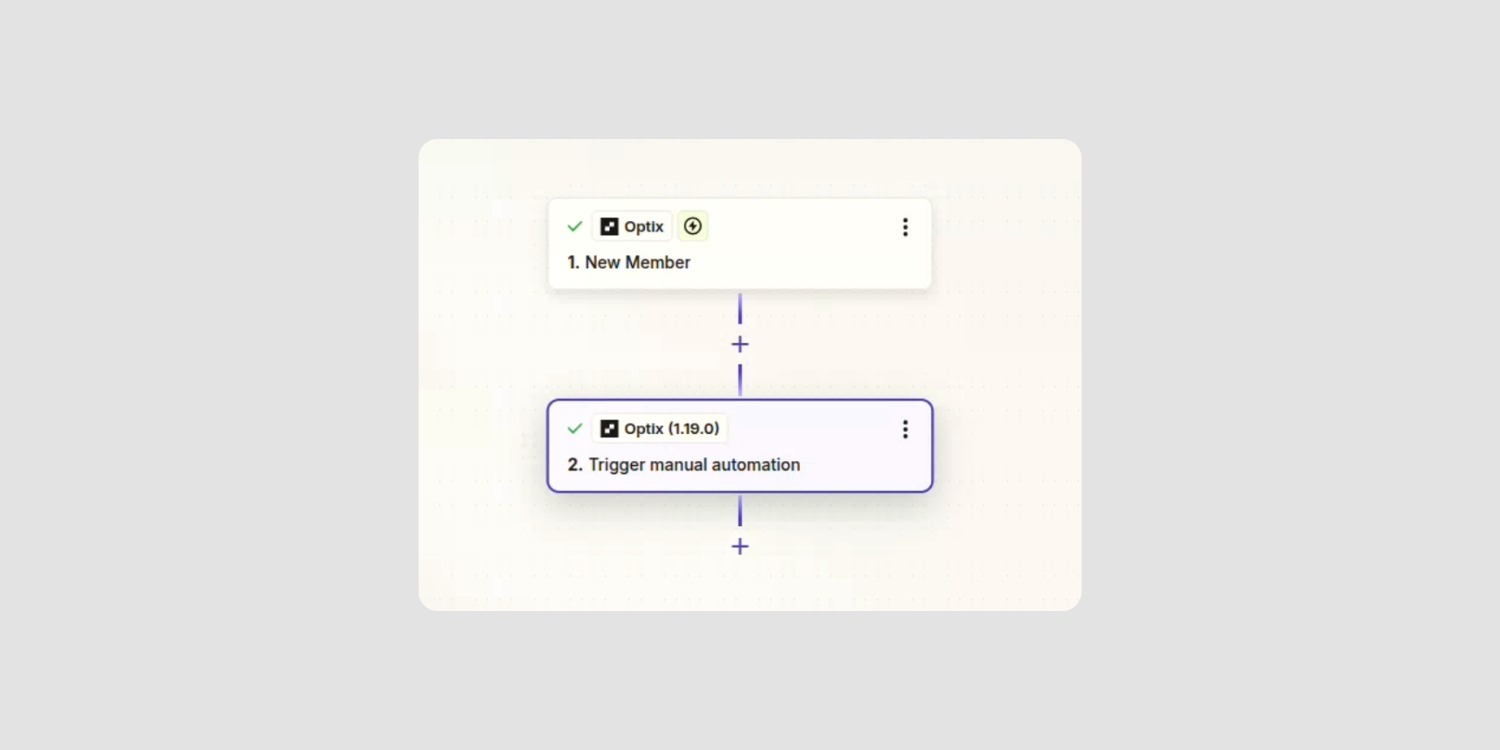
You can now trigger any manual automation in Optix from an external system using Zapier. This single action gives Zapier access to the actions Optix Automations can already perform.
With this new Zapier action, you can:
If you’re already using Zapier, you can now connect your existing workflows directly to Optix Automations, saving time and reducing the need to manage separate systems.
Learn more about how Zapier works with Optix →
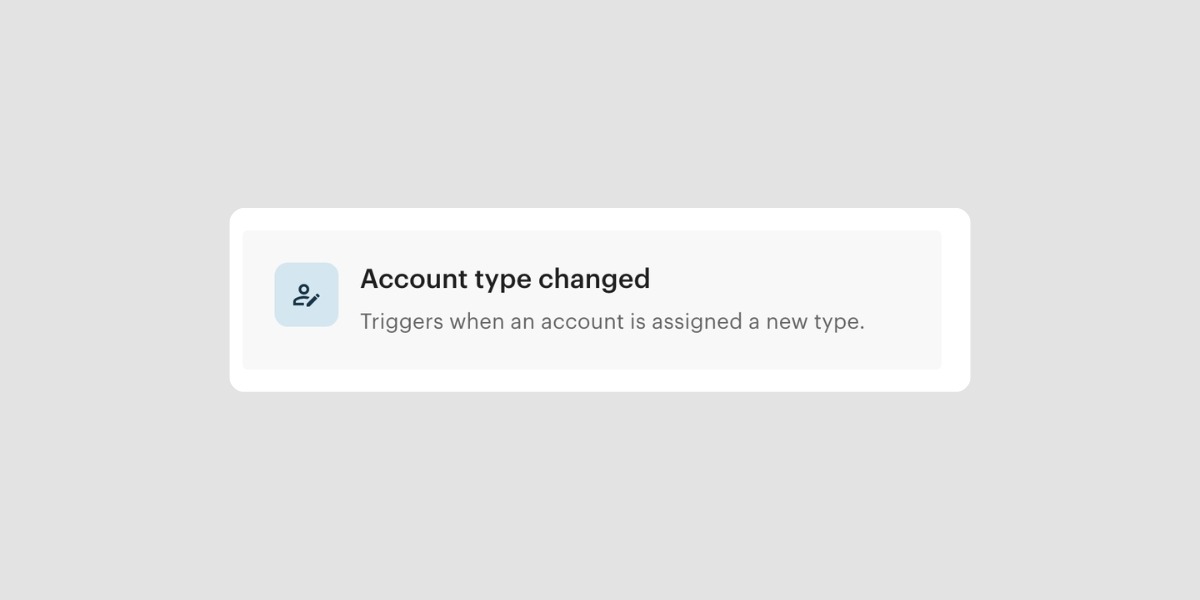
You can now trigger an automation whenever a user’s account type changes. This has been one of the most requested additions to Automations, giving you a reliable way to manage member lifecycle transitions automatically.
With this trigger, you can:
Whether you’re building onboarding sequences for new members, follow-up workflows for former members, or internal notifications when account statuses shift, this trigger helps you respond automatically, saving you from having to manually track every account change.
Learn more about the ‘Account Type Changed’ trigger→
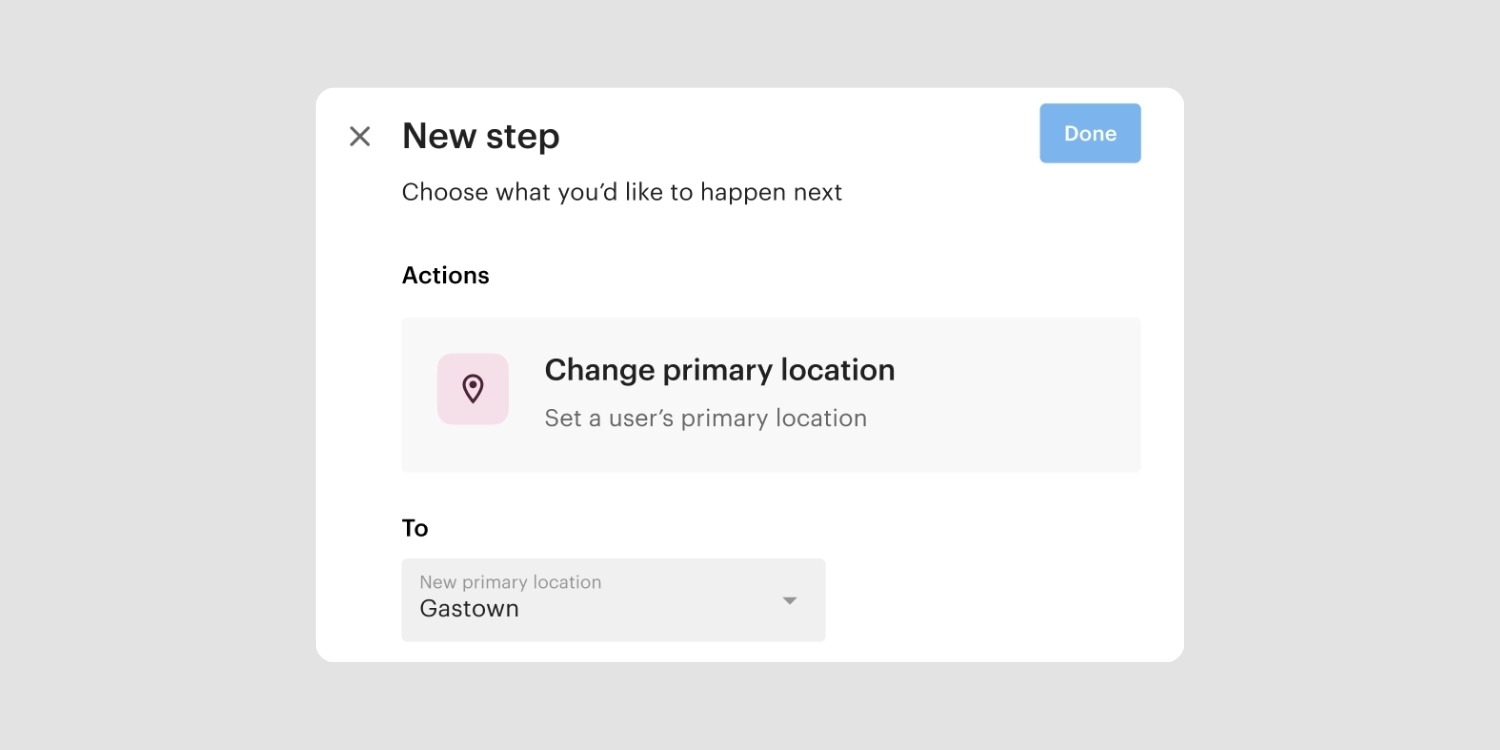
This new automation action lets you set a user’s primary location as part of any workflow. When building an automation, you can choose a specific location, and it gets applied whenever the automation runs.
With this action, you can:
For multi-location operators, this means fewer manual steps during onboarding and more accurate data across your system, so new members are set up correctly from the start.
Learn more about specific actions in Automations →
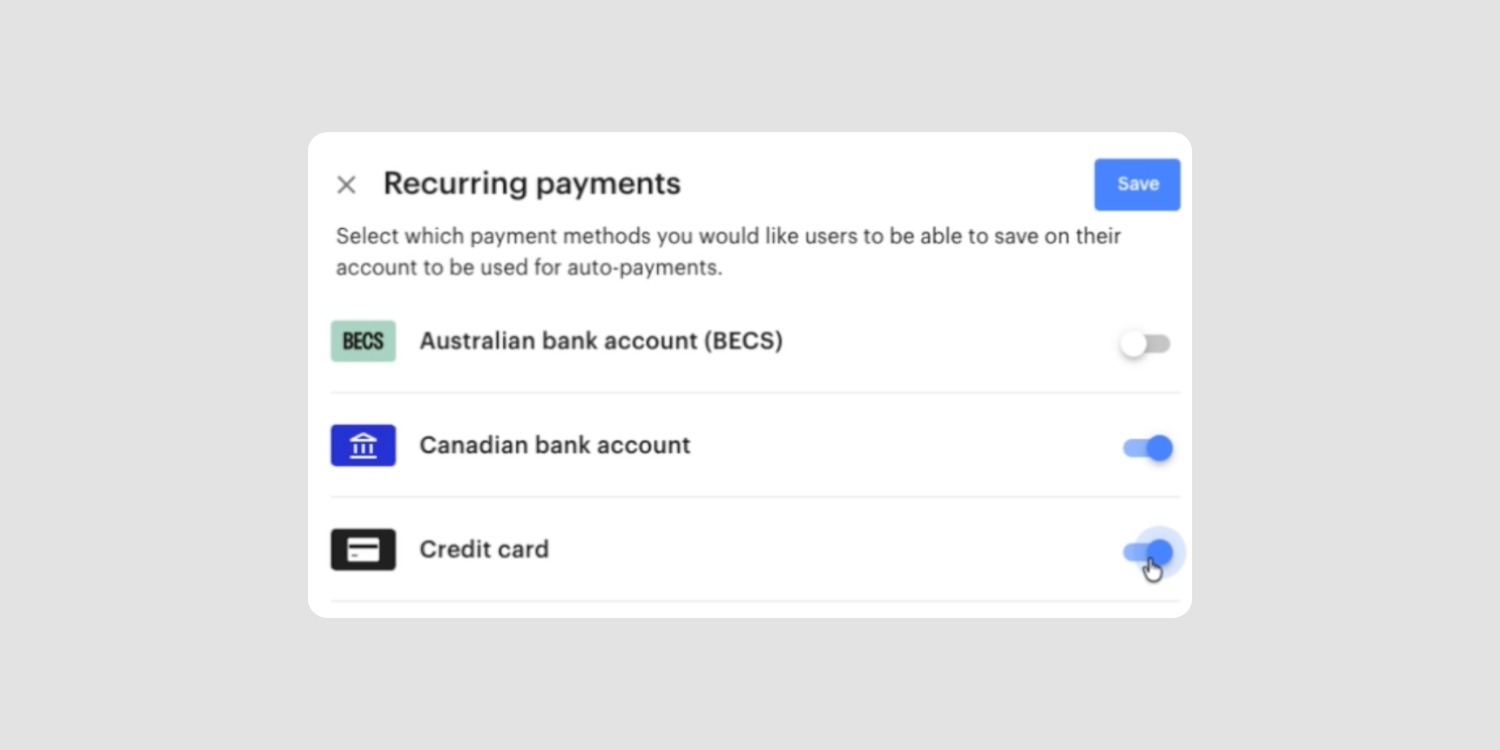
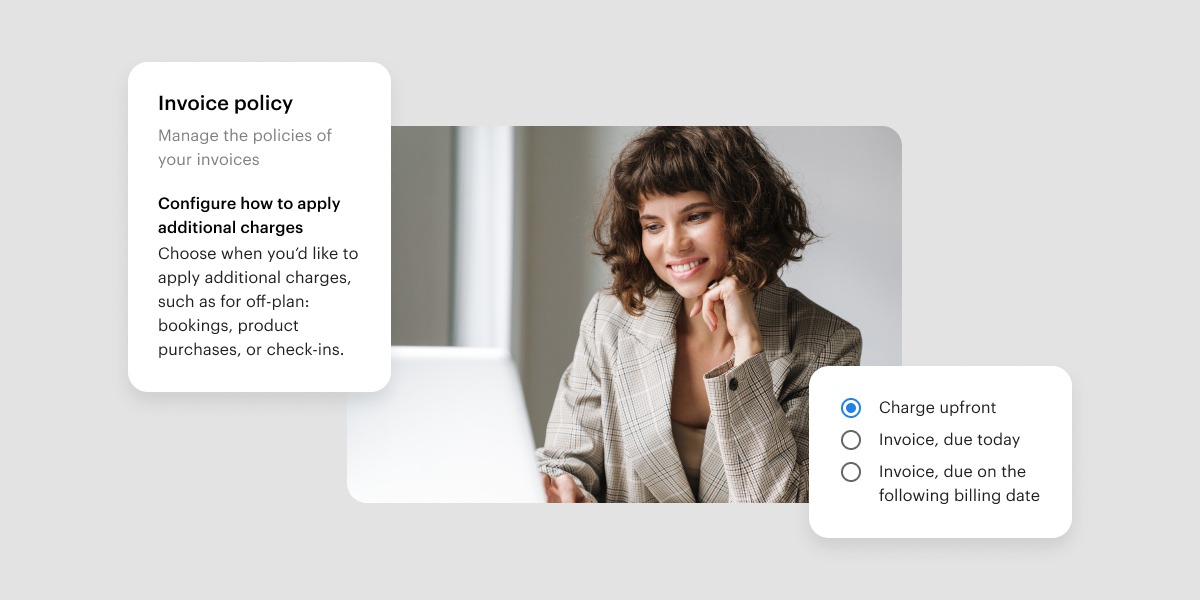
You can now disable credit card as a payment method in your Stripe settings. Previously, credit card was always required. Now, if you prefer to accept only bank transfers, iDEAL, or other payment methods, you can remove credit card entirely.
With this update:
This gives operators who want to avoid credit card processing fees or don’t want to pass these fees along to their members greater control over which payment methods are available to their members.
Learn more about managing payment methods in Stripe →
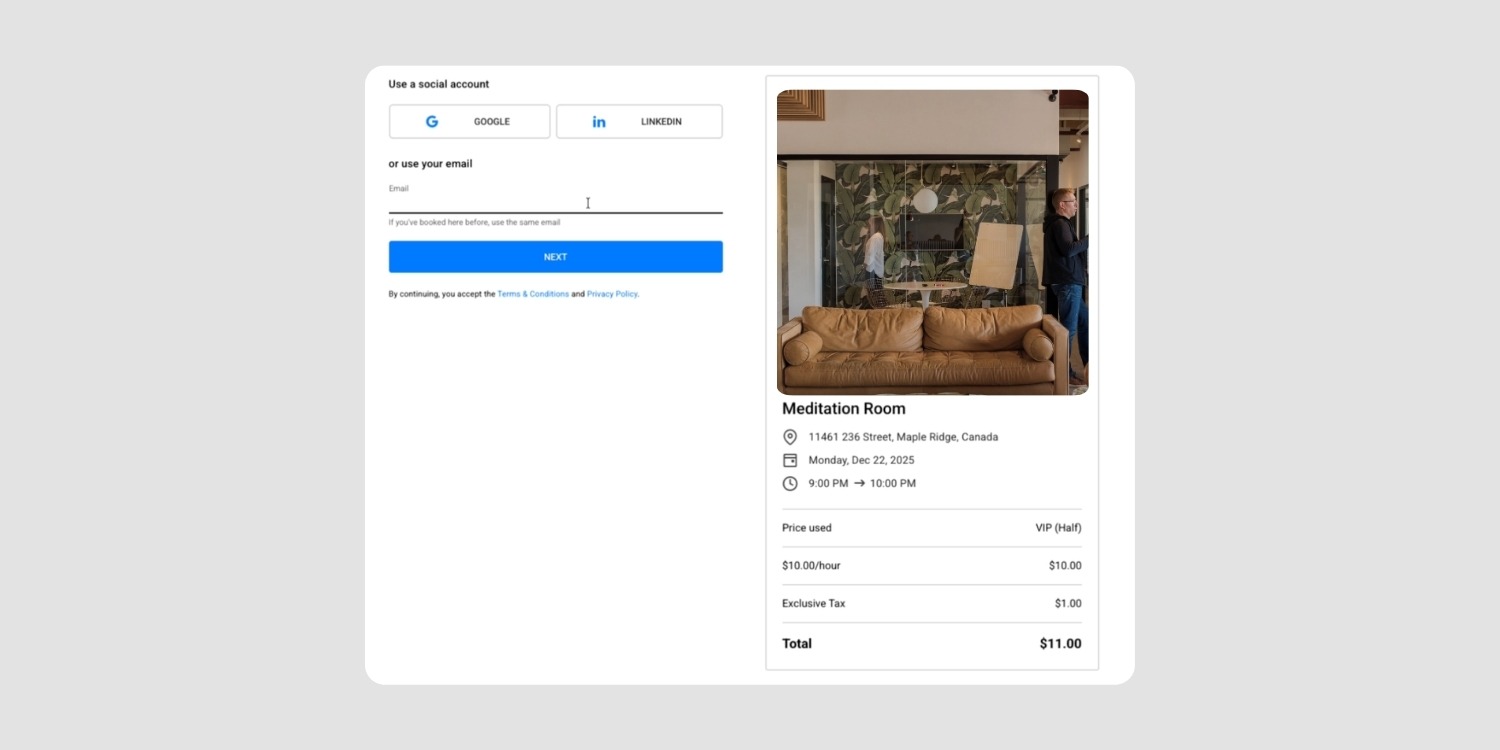
The drop-in booking widget now shows the cost of a booking as soon as a resource and time are selected, before a drop-in user logs in or creates an account. Previously, pricing wasn’t visible until several steps later.
With this update:
Showing pricing earlier helps set clear expectations and creates a smoother path from browsing to booking.
Learn more about the drop-in booking widget →
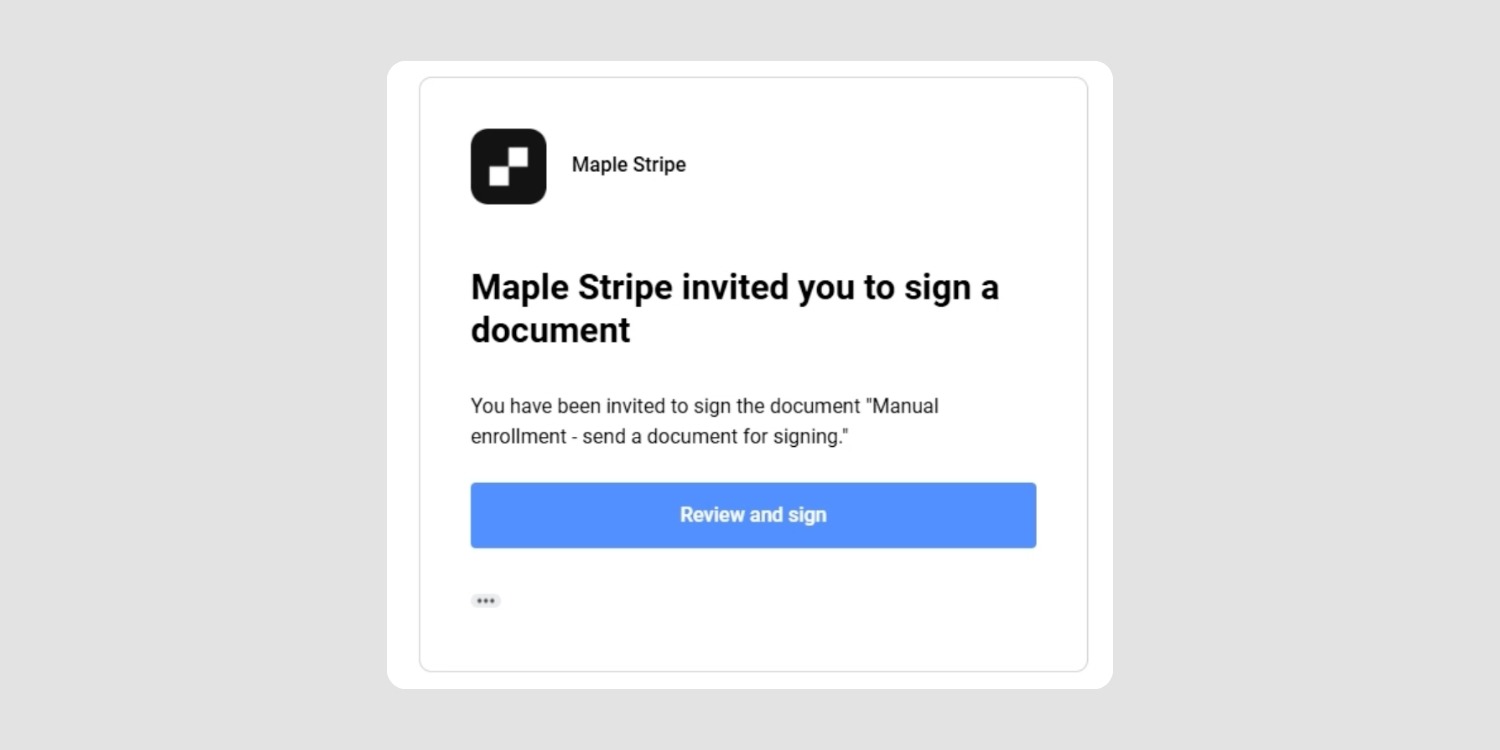
Unconfirmed users (leads) can now receive document signing emails from Optix. Previously, only active users were able to receive and sign documents.
Now, leads receive both:
You can now include document signing as part of your lead onboarding workflow, so nothing stalls while a lead is still unconfirmed.
More updates are on the way, and we’re excited to continue building tools that support how you run your space.
Subscribe to our newsletter to be the first to know about new features.