Introducing: Dashboard
Your most important metrics, upcoming activity, and automation performance, all in one place, from the moment you log in.
April 13, 2026
Managing a coworking space means keeping track of a lot. Revenue, bookings, assignments, outstanding invoices, upcoming tours, member activity and more. For most operators, getting a clear picture of how the business is performing has meant opening multiple sections, checking each one separately, and piecing the story together yourself.
That works. But it takes time, and it can mean missing the things that need attention most.
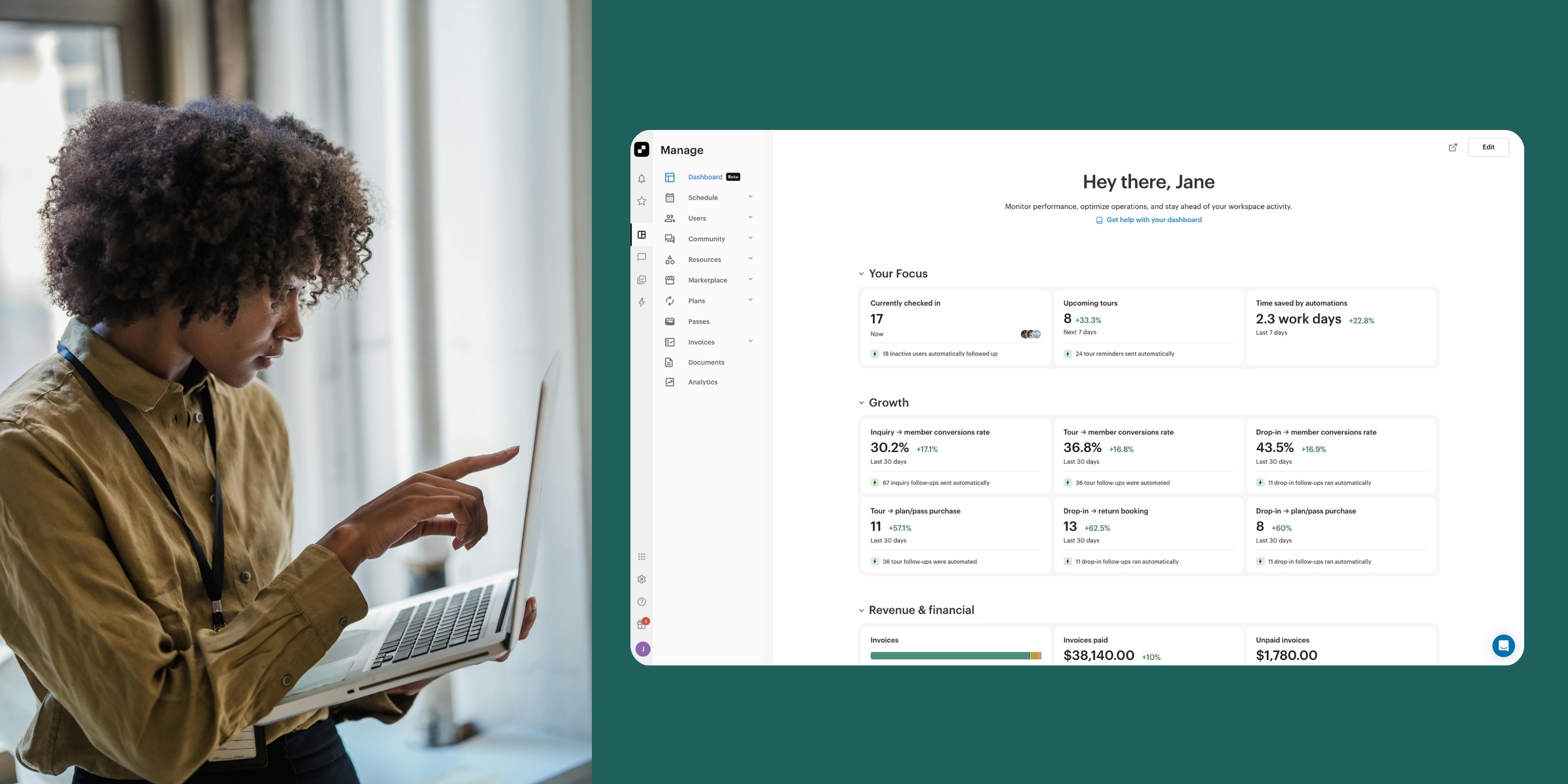
That’s why we built the new Optix Dashboard: a customizable home screen that brings your most important metrics, upcoming activity, and automation performance together in one view, from the moment you log in.
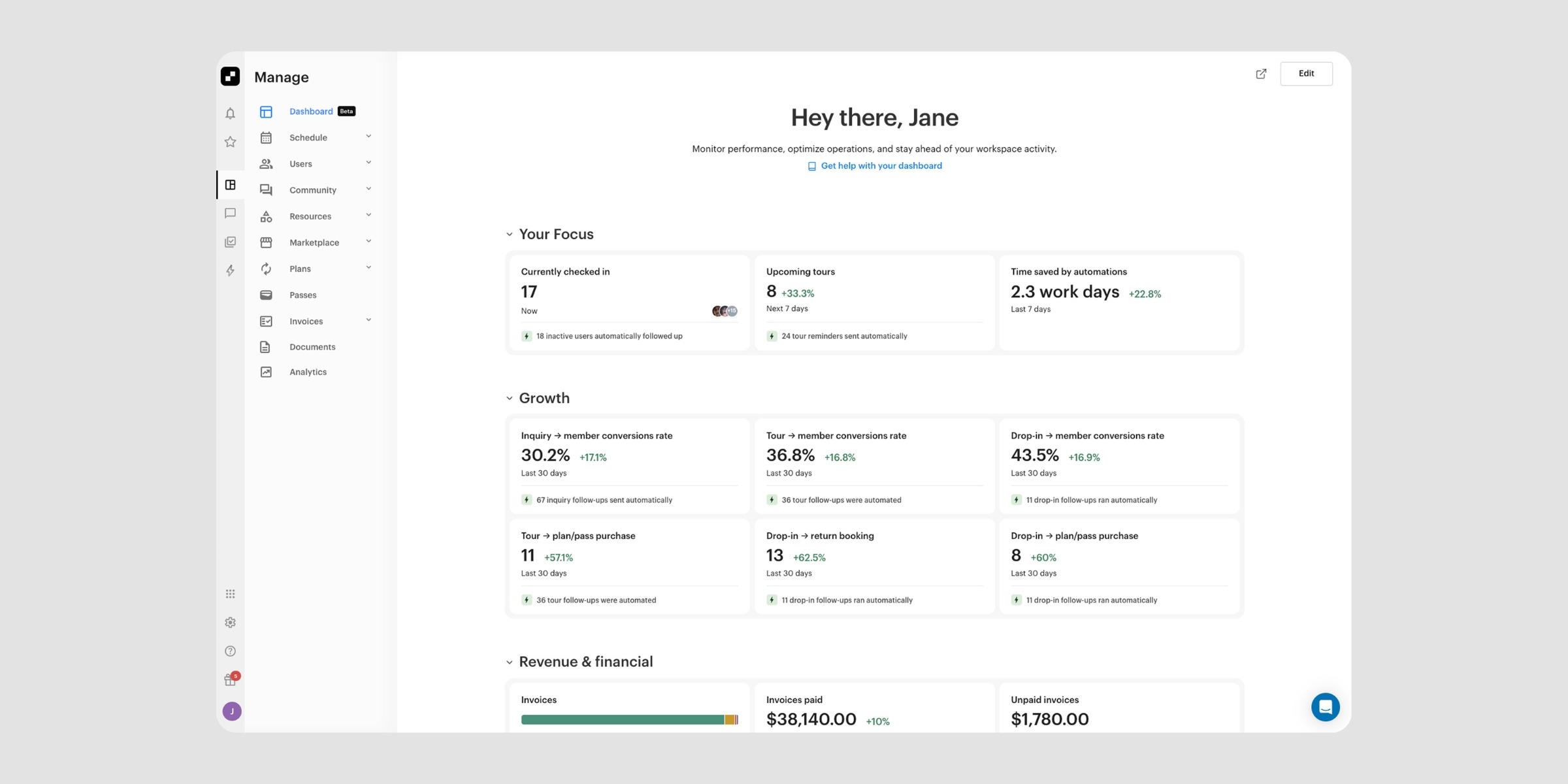
The Dashboard is a customizable overview screen in your Optix admin panel that surfaces your most important space performance data in one place. Instead of navigating between sections to check revenue, bookings, or member activity, the Dashboard organizes everything into widgets: individual data cards you can add, remove, and rearrange to match how you manage your space.
Widgets sit inside collapsible sections, so you can group your view around what matters to you. Want revenue at the top and automations below? Done. A focused operational view for your community manager? That works too. Each admin saves their own layout independently, so different team members can configure the Dashboard to suit their role without affecting anyone else.
See your whole business at a glance
Revenue, bookings, assignments, check-ins, tours, invoices, automation performance: all visible from one screen. No more opening four different sections to answer a single question about how your space is doing today.
Know where to act next
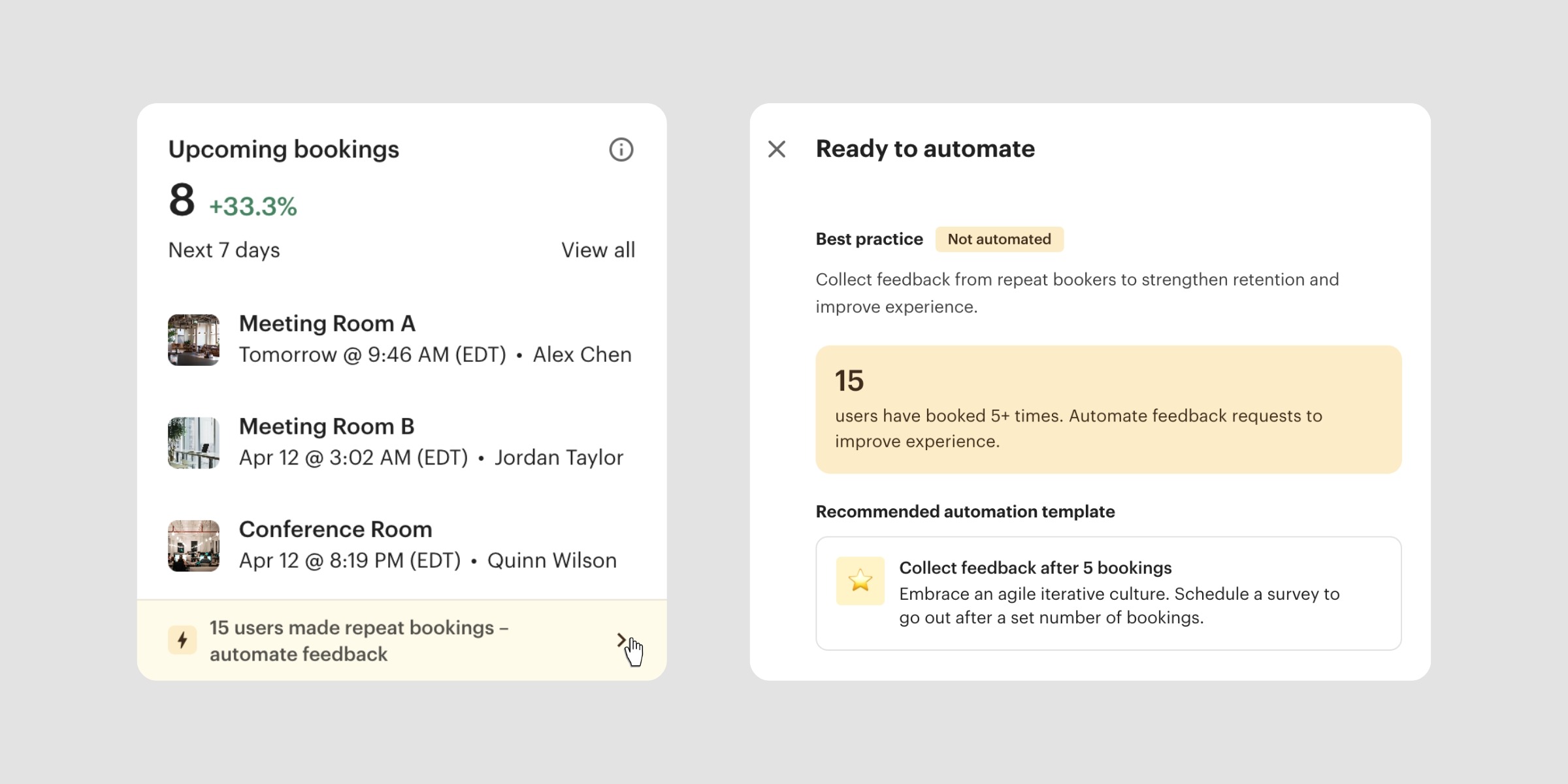
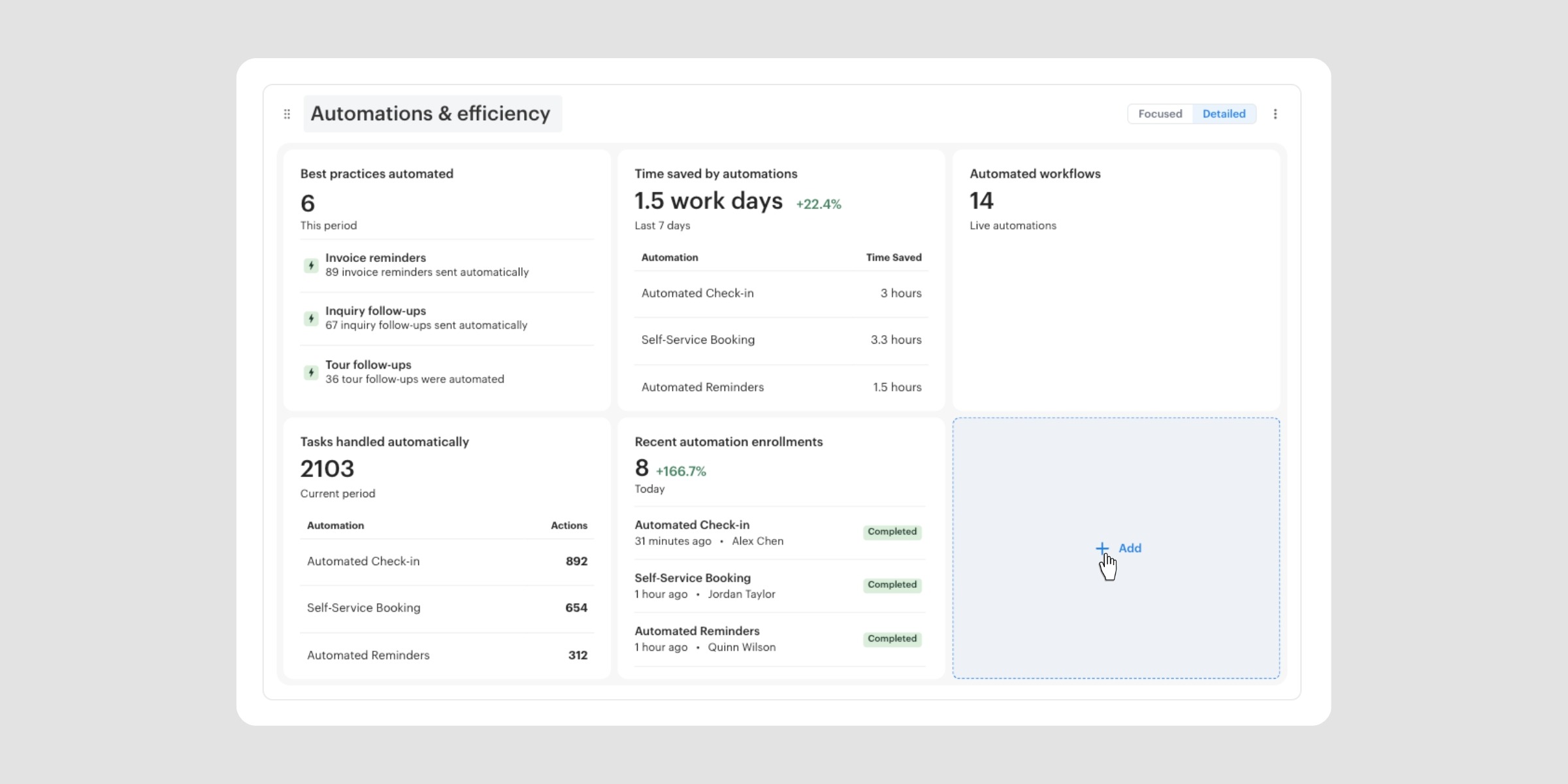
The Dashboard doesn’t just show you what’s happening. It shows you what you should do about it. Automation widgets surface whether your key workflows are active and what impact they’re having. When an opportunity is being missed, the Dashboard shows you the evidence: for example, how many members have made repeat bookings without a follow-up sequence in place: and links directly to a template that addresses it. You see the gap, you see why it matters, and you can act on it in a few clicks.
Set it up your way
Every widget can be added, removed, expanded/collapsed, and repositioned. Sections are collapsible and fully renameable. Each widget tracks its own independent date range, so you can monitor this week’s bookings alongside this month’s revenue without one overriding the other. Your layout saves automatically and carries across every session.
Built for multiple locations
If you operate more than one space, a single location filter updates every widget on the Dashboard at once. Switch between sites or view combined data across your whole portfolio with one click.
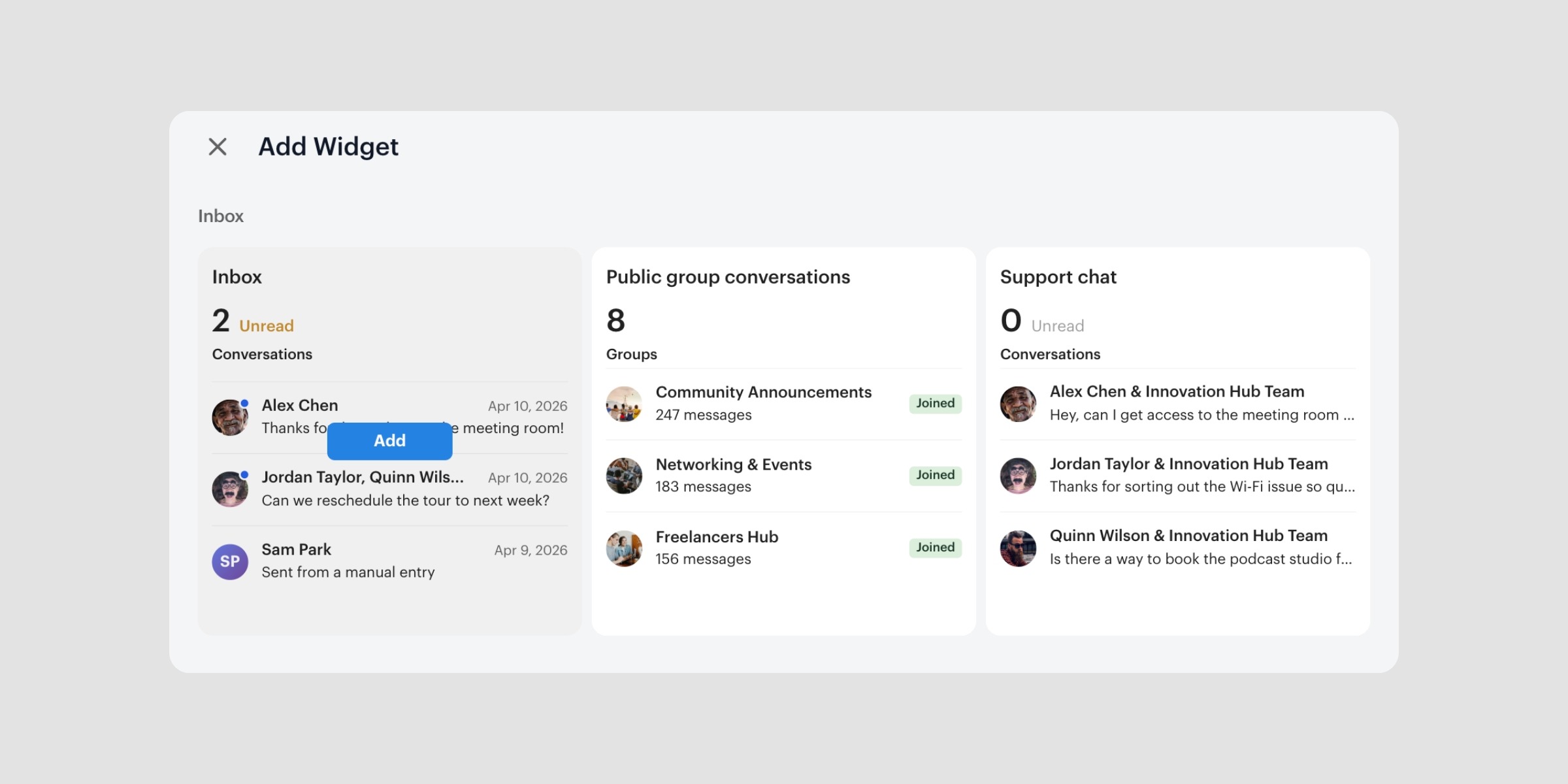
Here’s what the Dashboard gives you direct control over:
Learn how to set up the Dashboard ->
New operators getting started with Optix
When you’re setting up your space, it can be hard to know what a well-run operation looks like from the inside. Trial mode gives new operators an immediate, realistic picture of what the Dashboard looks like when a space is performing well: revenue tracking, conversion metrics, automation performance. It’s a useful frame of reference when you’re still building out your workflows and goals, and it removes the guesswork from knowing what to track.
If you’re still building out your operations, Trial mode gives you a clear picture of where you’re heading.
Growing operators managing multiple locations
For operators running two or more spaces, visibility across sites is one of the harder day-to-day challenges. The Dashboard’s location filter lets you check on each venue individually or pull combined data across your whole portfolio from a single screen. Tour conversions, assignment activity, revenue, and automation performance can all be tracked per location without switching tools or pulling separate reports.
If you’re scaling across locations, the Dashboard gives your team a consistent view of how each site is performing.
Operations and community managers
For the people managing day-to-day activity, check-ins, upcoming tours, bookings, member messages, open tasks, the Dashboard puts the operational picture front and centre. The Your Focus section surfaces currently checked-in members, upcoming tours, and outstanding tasks at the top of the screen. Everything relevant to the next few hours of your day, without digging for it.
If your role is keeping the space running, the Dashboard is organized around the questions you ask most often.
The Dashboard is available now to all Optix clients in beta. We’re rolling it out gradually to make sure the experience is right, so if you don’t see it in your admin panel just yet, it’s on its way. After the beta period, the Dashboard will become a standard part of the Optix platform.
During beta, your feedback shapes how it develops. Head into your admin panel to explore the Dashboard, and let us know what you think.
Learn more about the Dashboard ->
Have questions? Reach out at support@optixapp.com or via the chat in your admin dashboard.