What’s New in Optix: June 2026
Learn about what we've added to the Optix platform in June 2026
July 2, 2026
This month Automations got a massive upgrade with Automations Branching and Collections. Automations Branching lets a single automation adapt to each member, sending everyone down the right path from one trigger. Collections organises templates around the outcomes you’re working toward, so the right automations are easier to find and faster to set up.
You’ll also find new and refreshed templates, more control over member notifications, and clearer visibility into what your prospects are asking for.
Let’s take a look at what we’ve added to Optix in June!
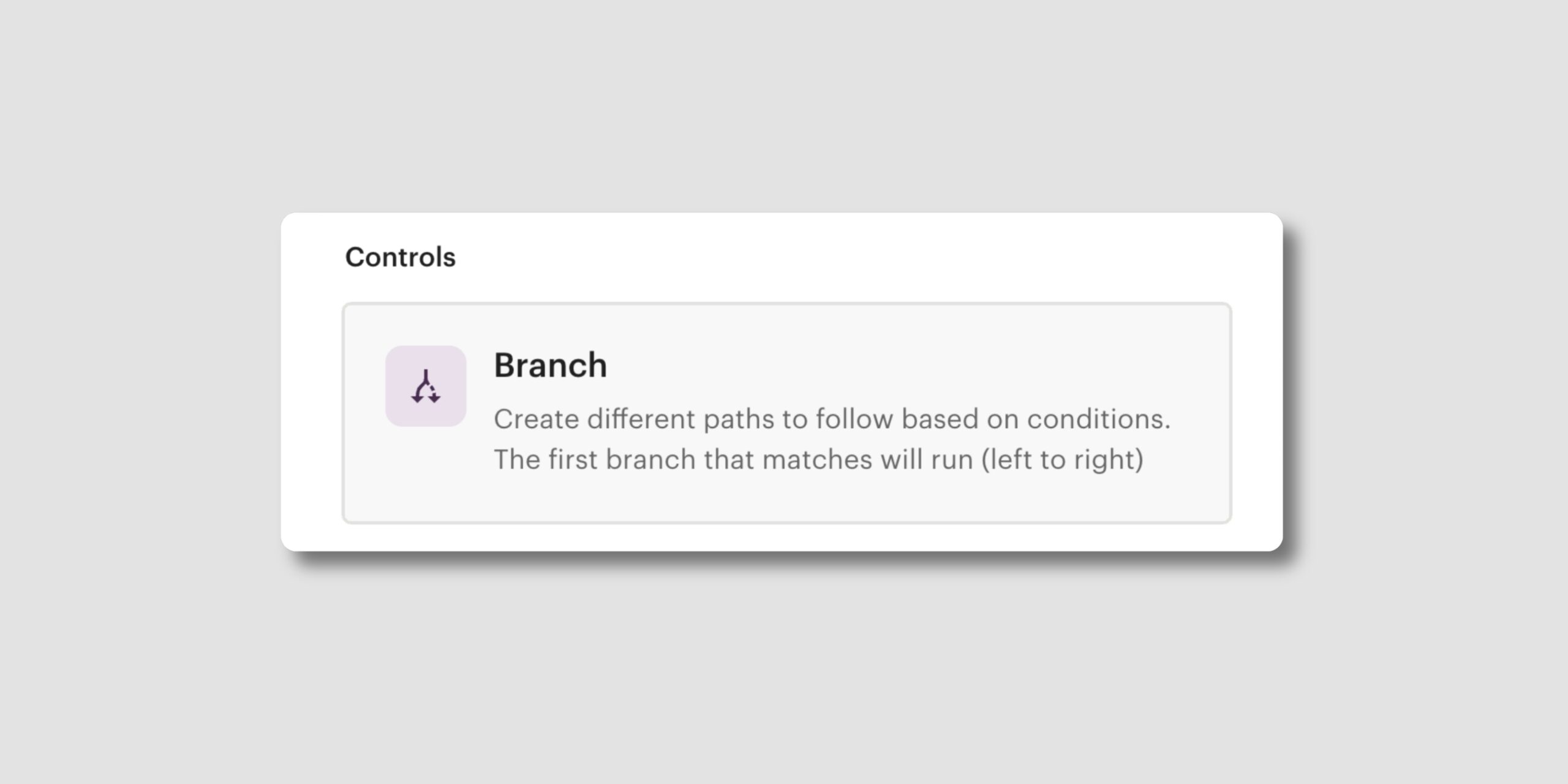
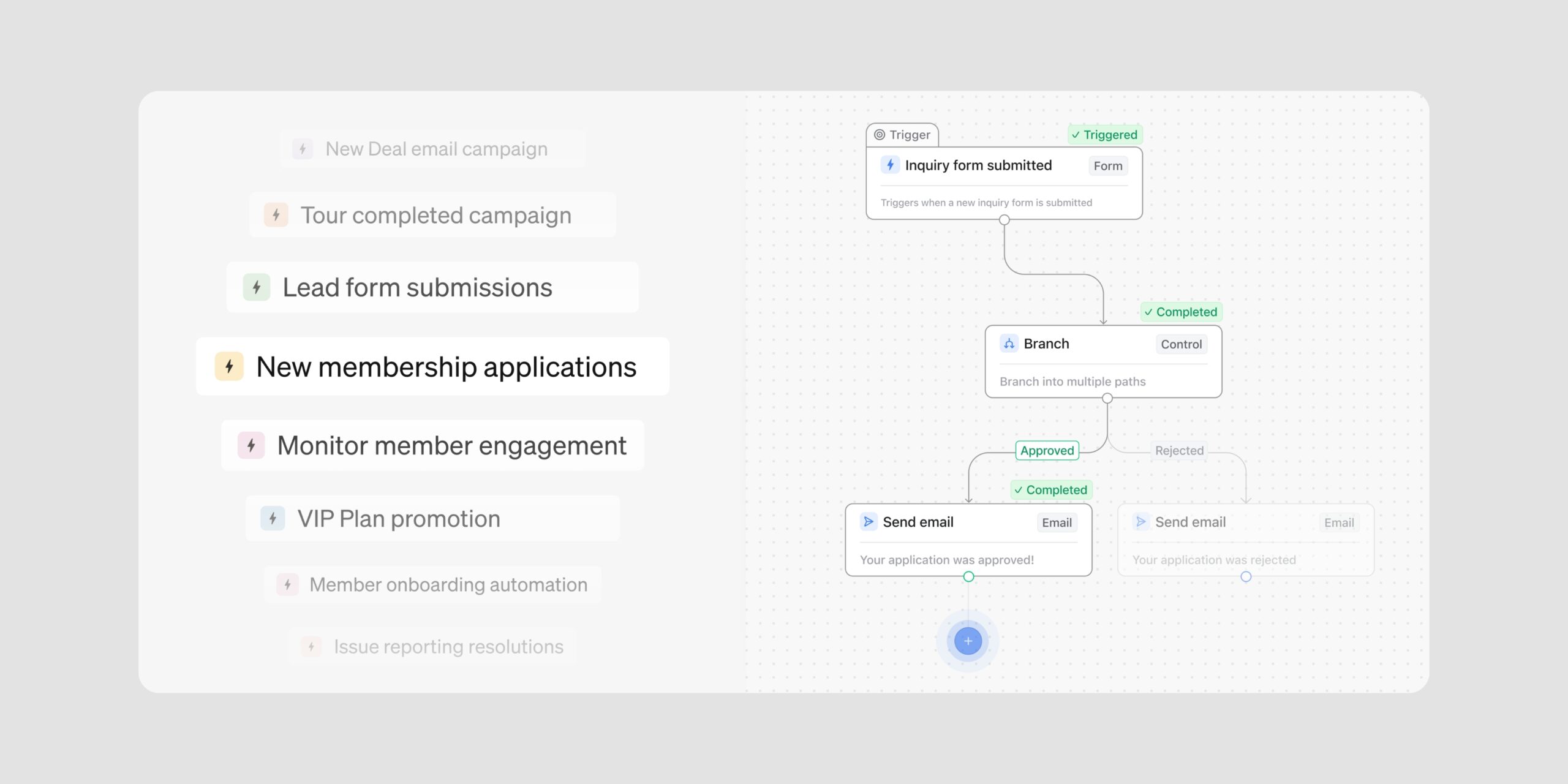
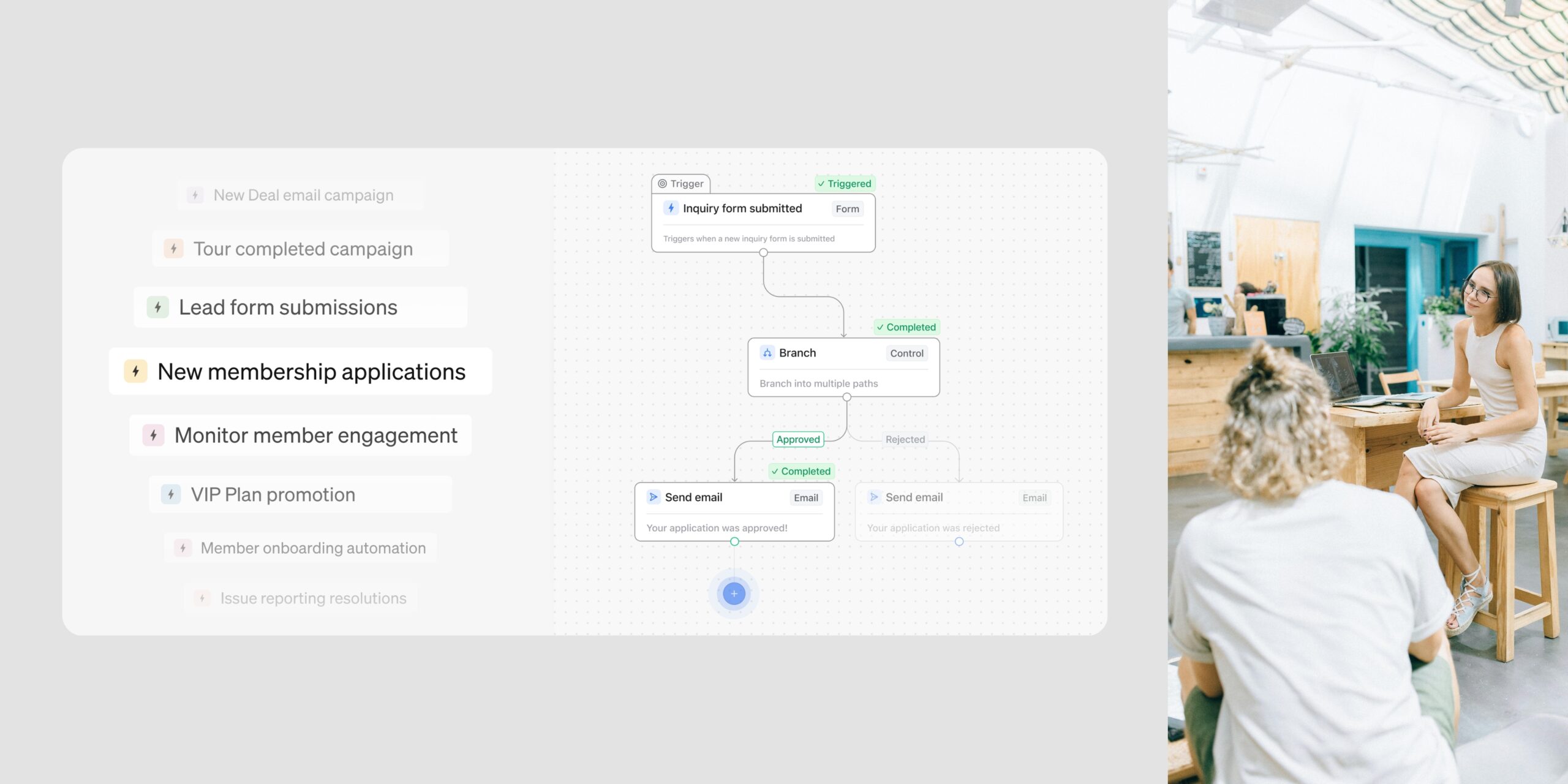
Automations Branching gives a single automation the power to make decisions. One automation can now look at who’s enrolling, send each person down the right path, then bring everyone back together for the steps they share.
A branch is a step that opens more than one path. A final Fallback path catches anyone who doesn’t match, so no member falls through the gaps.
With Automations Branching, you can:
Because each person only travels one path, only the actions on that path count toward your monthly automation actions. Automations Branching is available now for clients on an Automations+ subscription.
Learn more about Automations Branching →
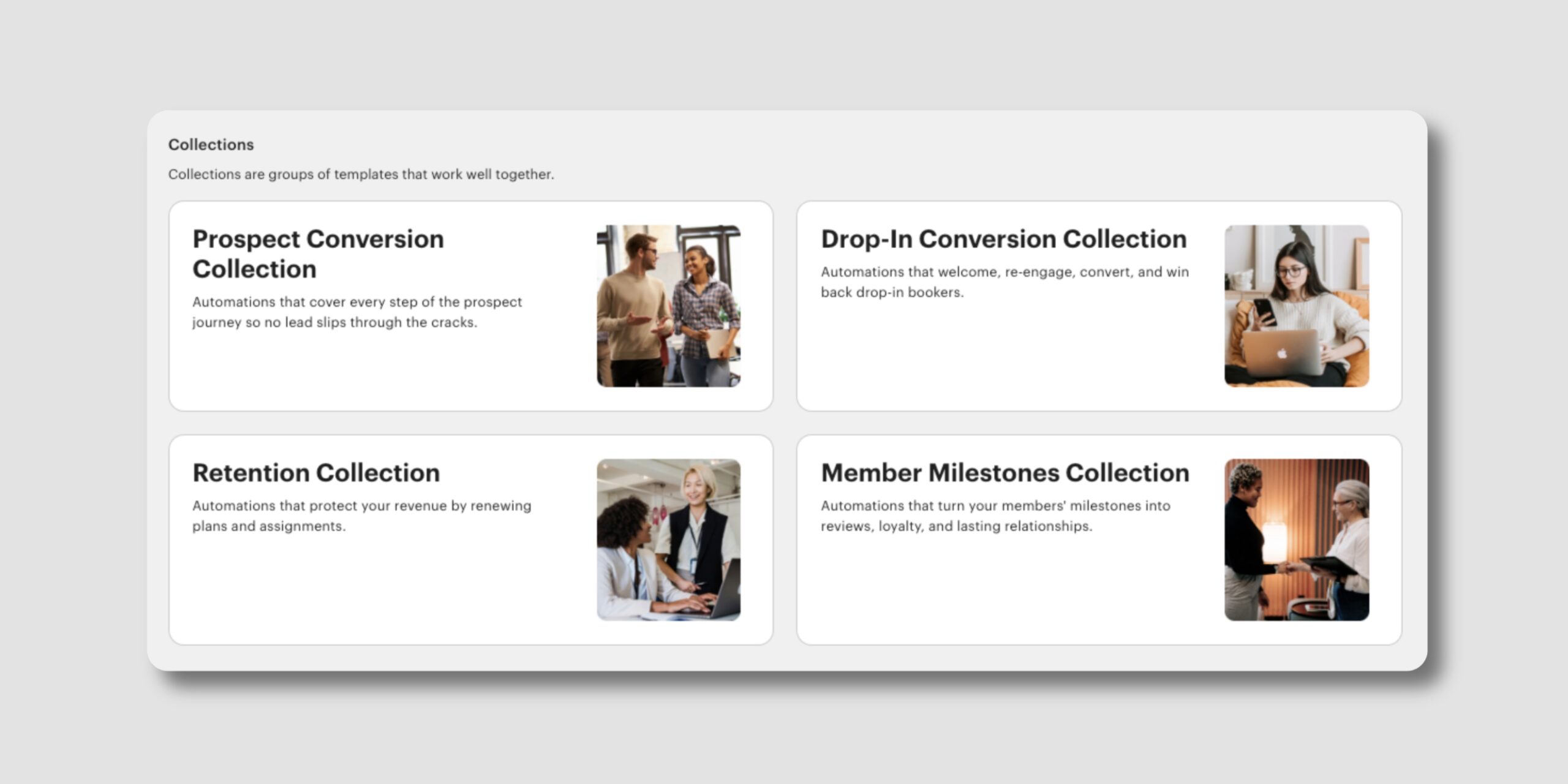
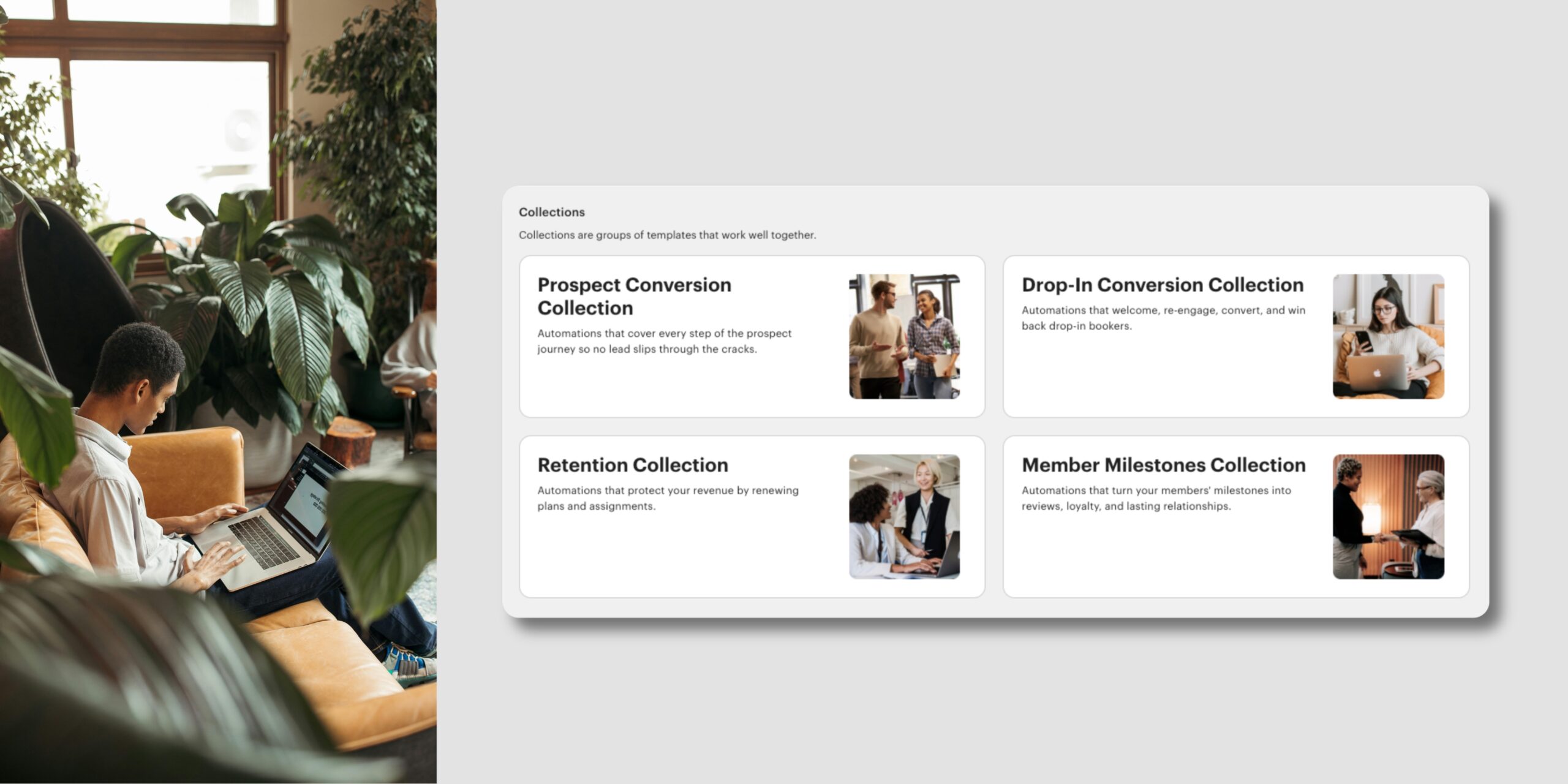
Collections help you put coworking best practices to work without building them from scratch. Each Collection groups templates that tackle a single goal from every angle, so instead of picking automations off a list, you’re installing a complete approach to an outcome.
Converting drop-in users is a good example. It takes more than one move: welcoming them after a first visit, prompting them to book again, deepening their commitment once they’ve returned a few times, and bringing them back if it’s been a while. A Collection brings those angles together so you cover the whole goal, not just one piece of it.
Four Collections are available to start:
Open a Collection to see its goal, the templates that get you there, and a “Before you go live” note. Live and paused chips show what’s already running, and you set up each template individually, so you stay in control of what goes live and when. Collections are browsable on every plan, though some templates need an Automations+ subscription to set live.
Learn more about Automations Templates →
Two templates in the Prospect Conversion Collection now cover the full journey from first inquiry to signed-up member, handing off to each other along the way. One gets the tour booked, the next carries that warm prospect through to sign-up.
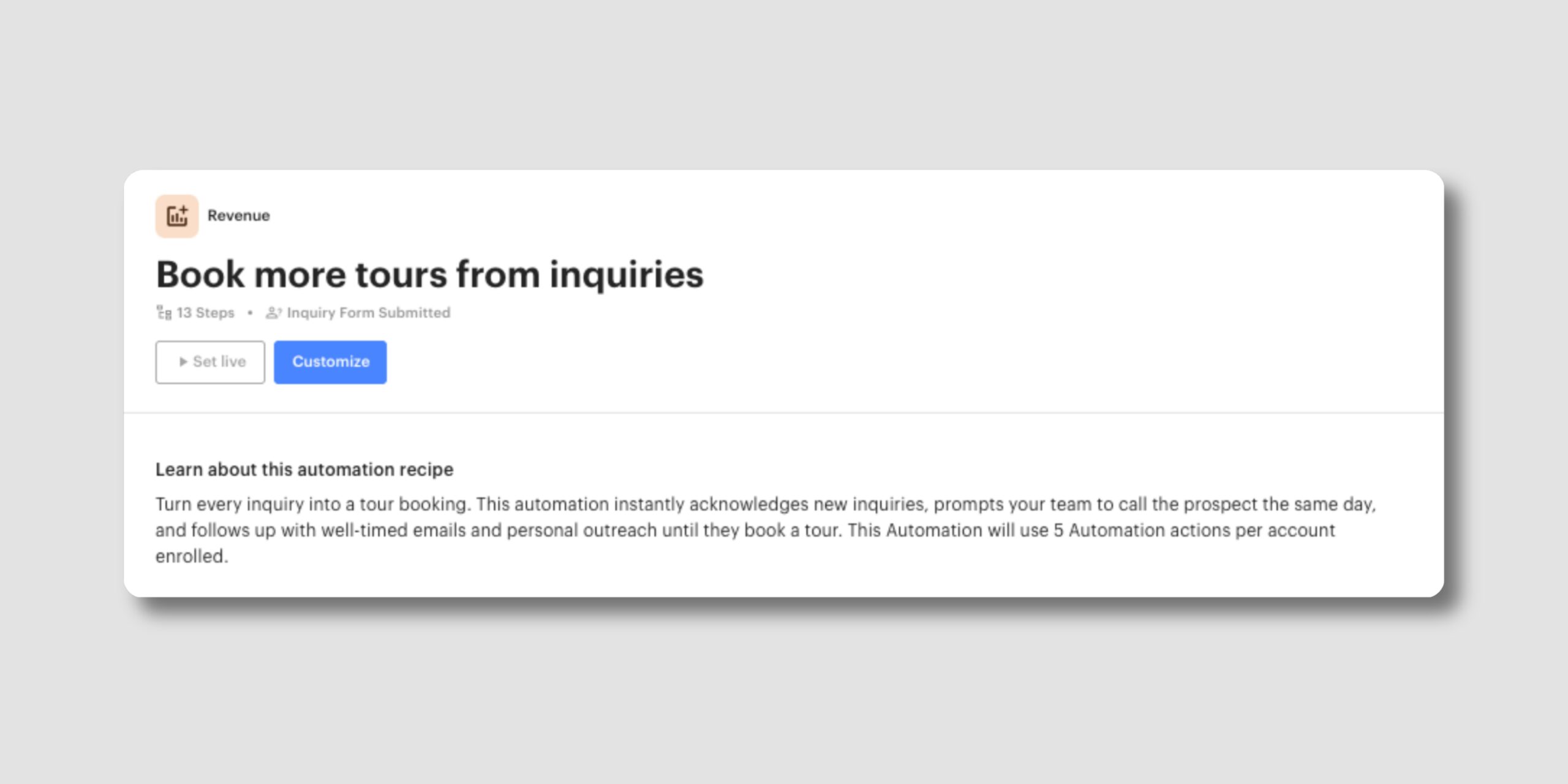
A new template that picks up the moment an inquiry arrives. With it, you can:
It turns more of your inquiries into tours without you tracking each one by hand, and uses 5 Automation actions per account enrolled.
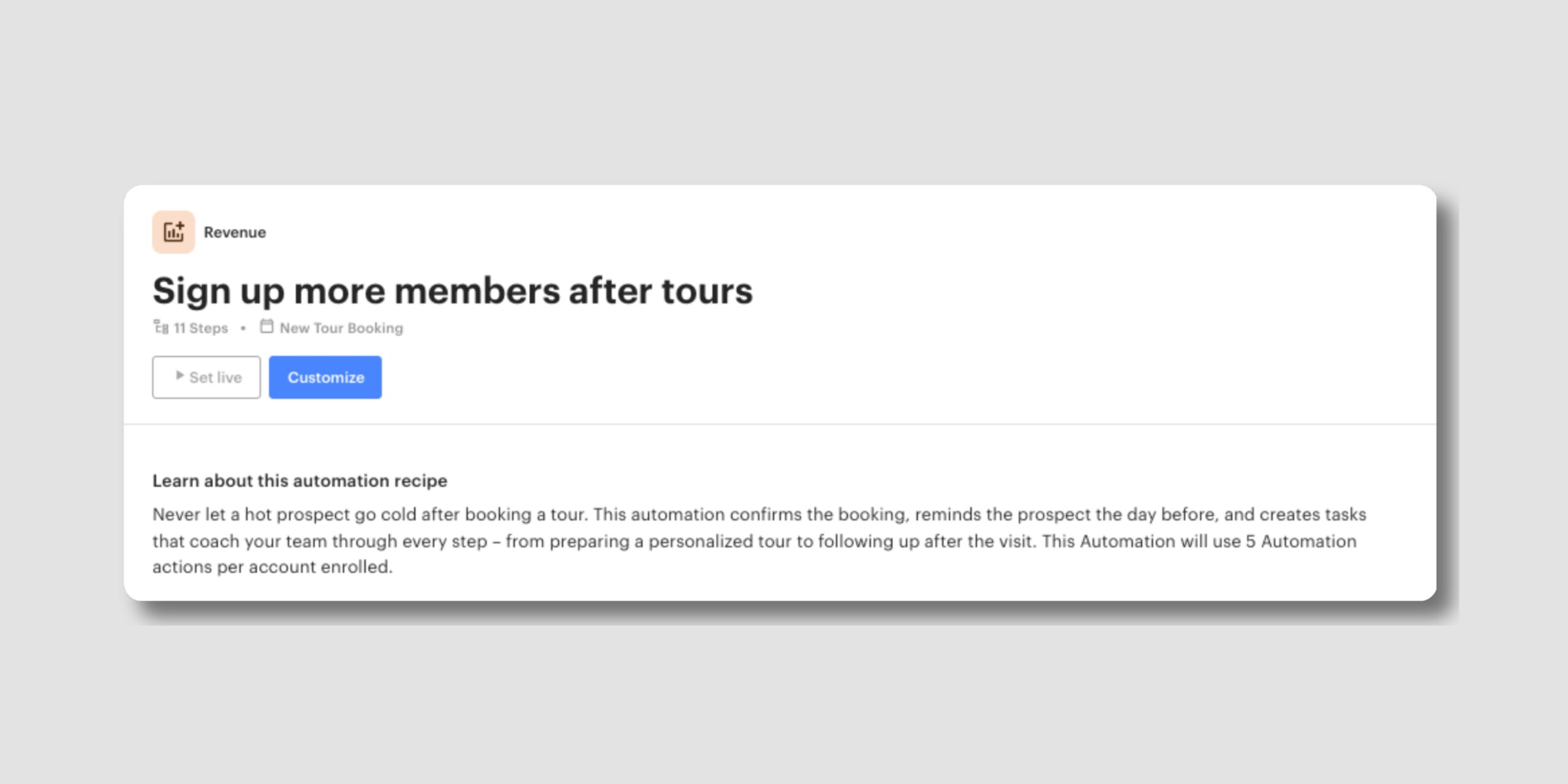
A significant refresh has been given to the template formerly named “Convert prospects from tour to sign-up”. It now does more to keep a hot prospect warm from the tour booking through to sign-up:
No more switching between schedules to check what’s open. Floor Plan gives you a clear, visual picture of your space in the moment.
Learn more about Automations Templates →
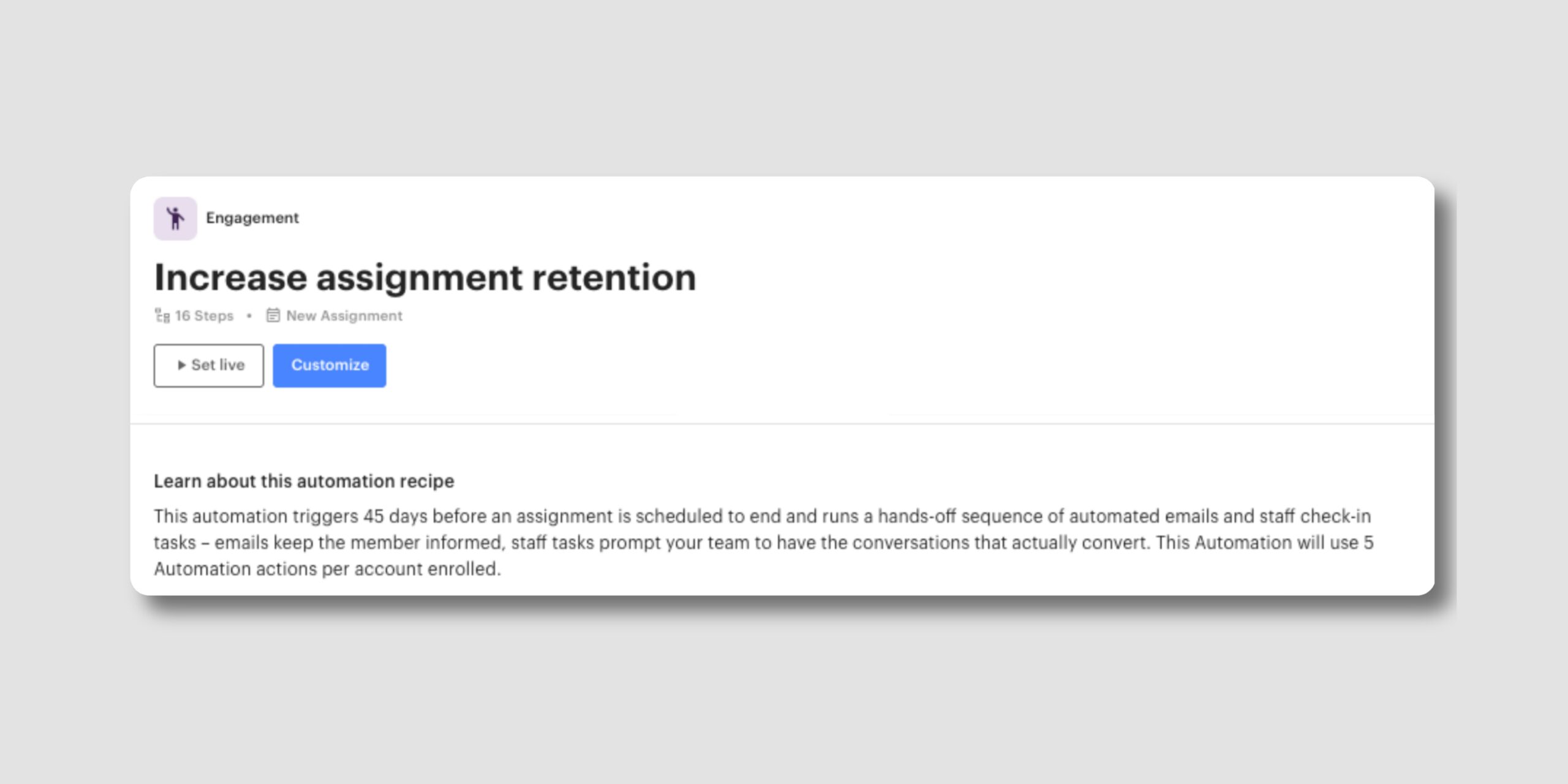
A new template is now available in your Automation Templates library: Increase assignment retention, part of the Retention Collection. It starts 45 days before an assignment is scheduled to end.
With this template, you can:
Learn more about Automations Templates →
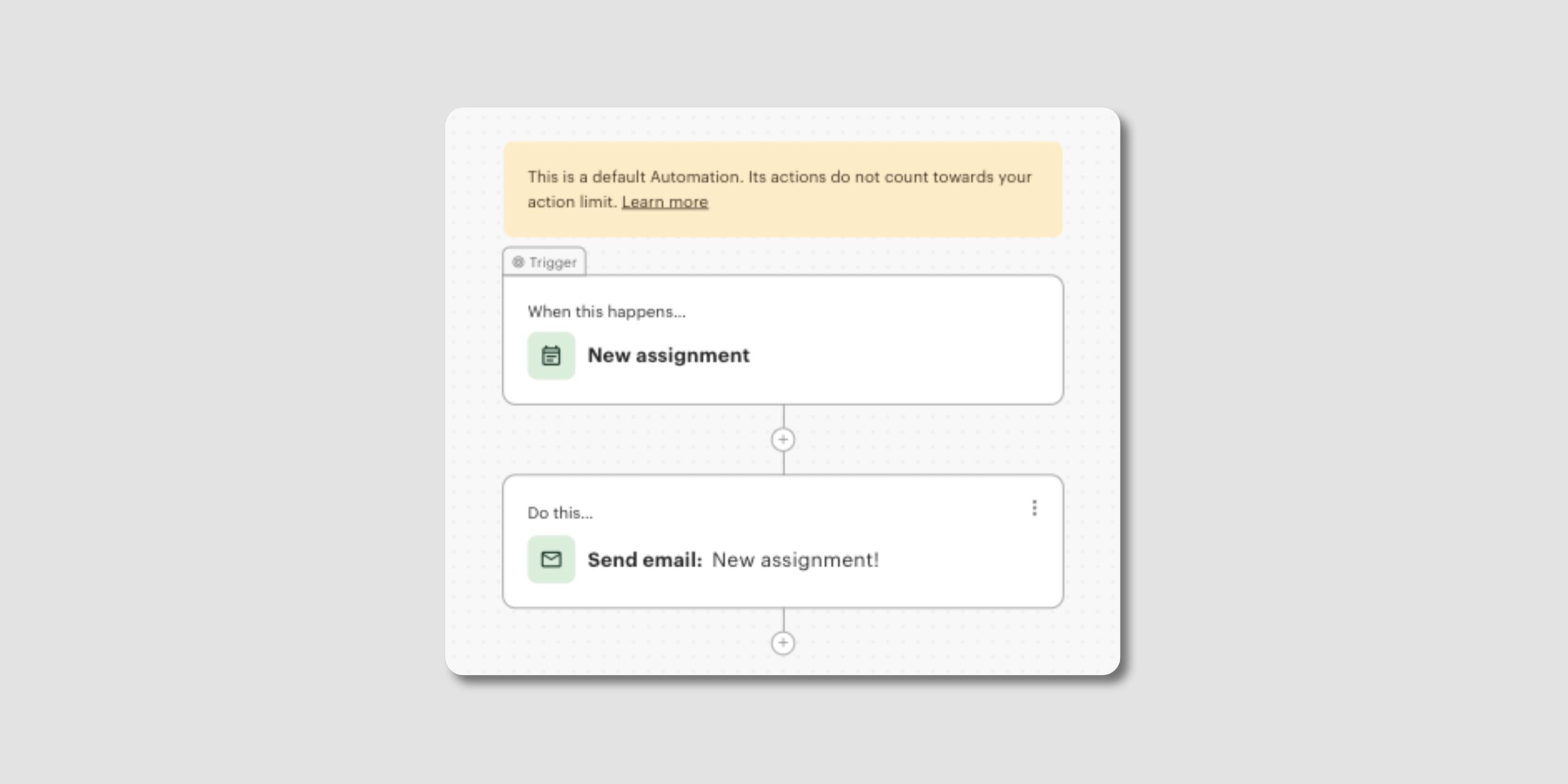
The Assignment added email is now a default automation you control. By default, members receive an email when an admin adds them to an assignment. If you use assignments only for inventory or resource management, you can switch this email off so members aren’t notified unnecessarily.
With this update, you can:
Learn more about default Automations →
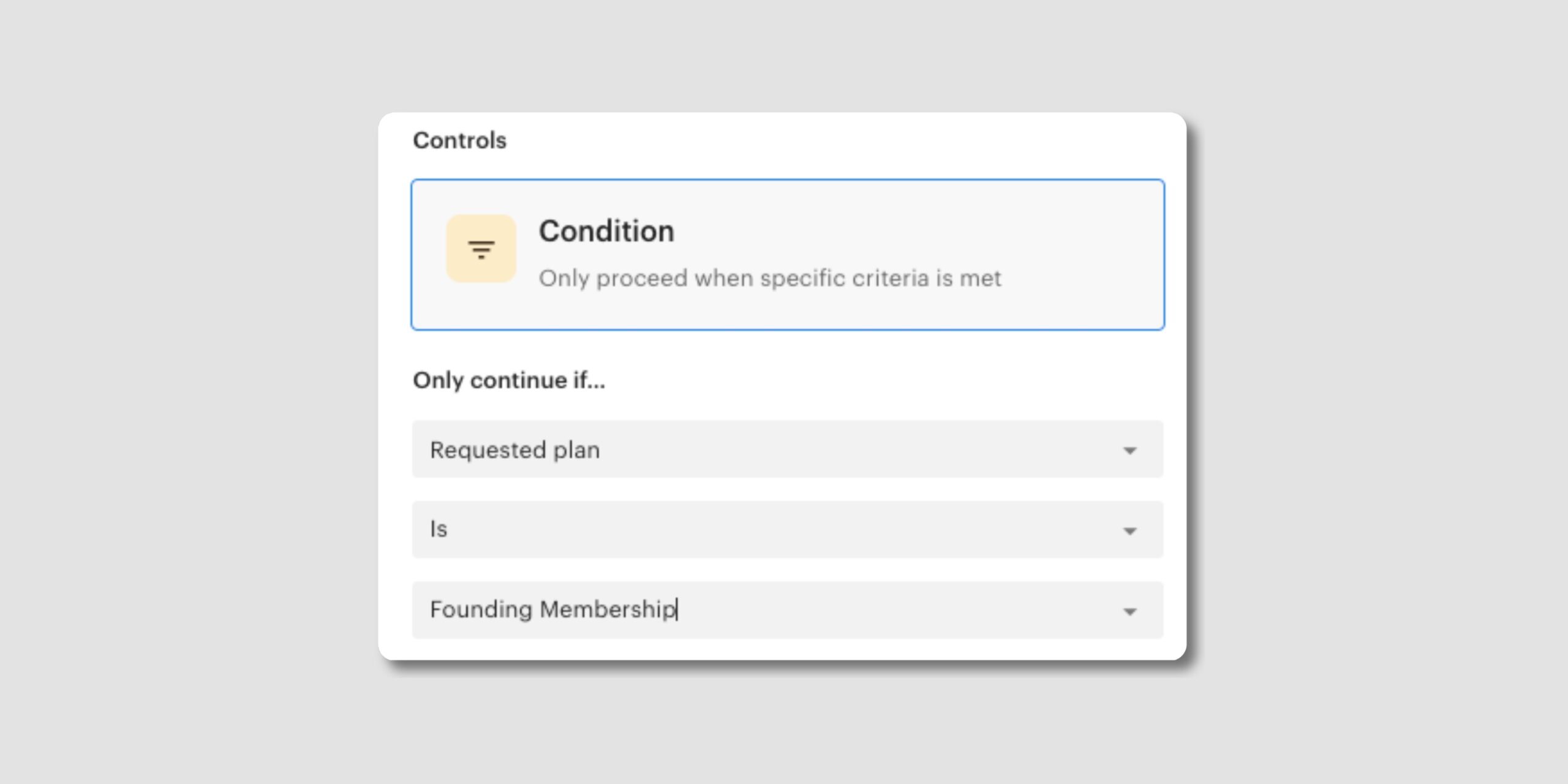
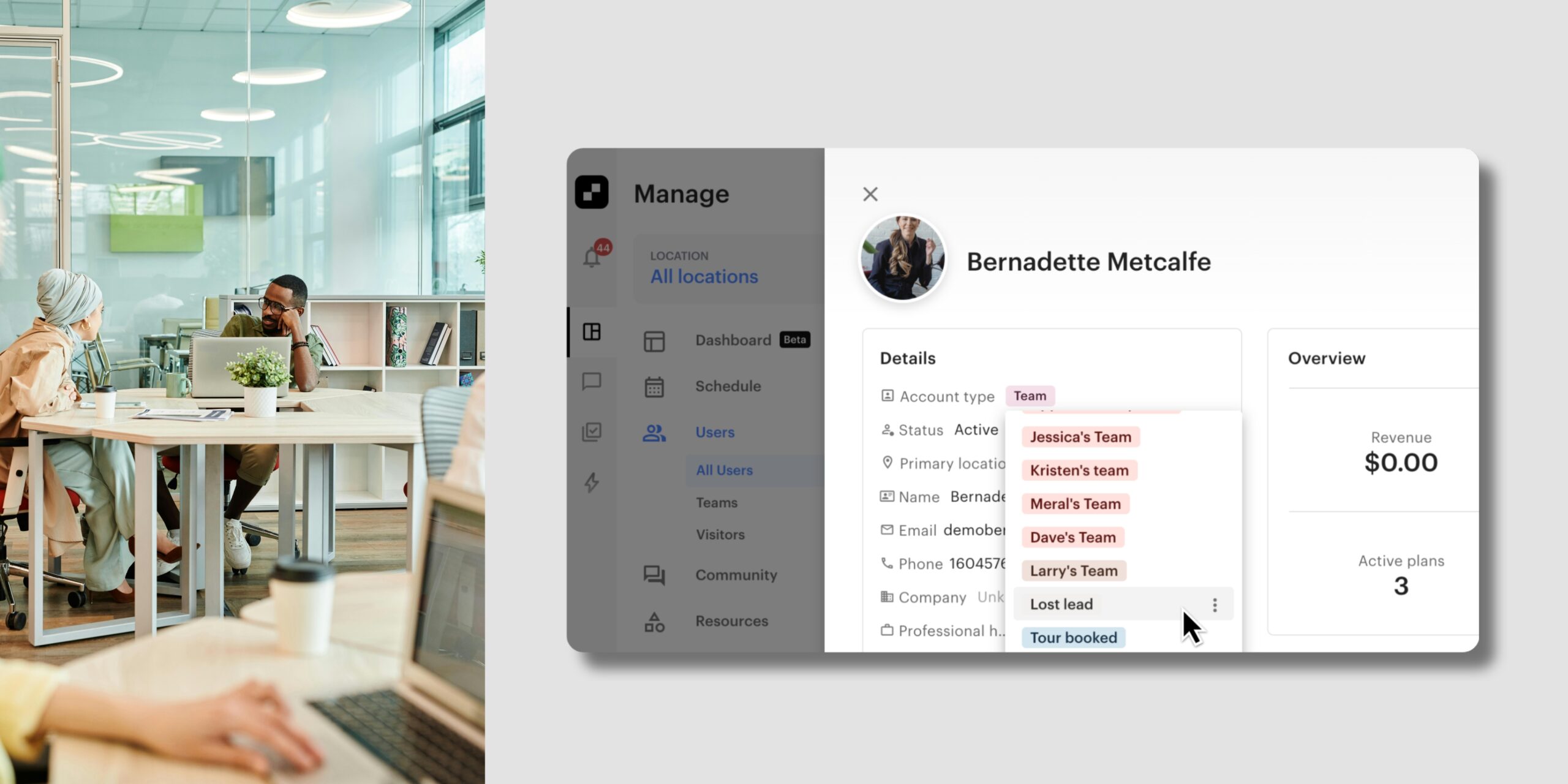
When a prospect submits an inquiry, Optix now captures the plan or pass they asked for and shows it in a new section on their account panel.
With this update, you can:
Give prospects a faster, more relevant response by knowing what they want before you reply.
Learn more about user properties →
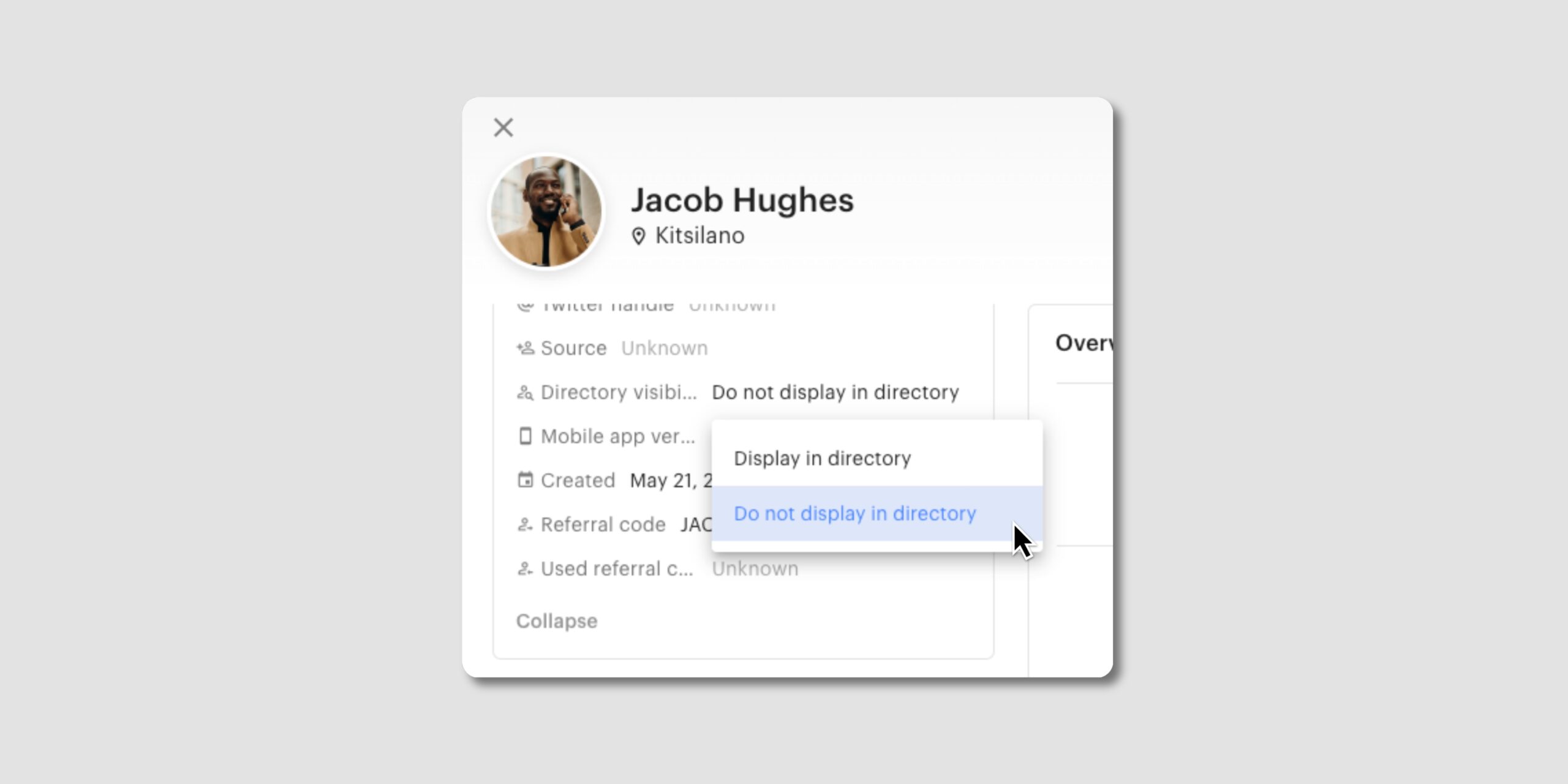
Admins can now hide an individual member or team from the Directory, directly from the account panel. This gives you control over who appears in the Directory without affecting anyone else’s visibility.
With this update, you can:
Give prospects a faster, more relevant response by knowing what they want before you reply.
That’s a lot of new ground inside Automations this month, from one automation that adapts to each member, to a template library organised around the goals you’re working toward. We’ll keep building on both.
Subscribe to our newsletter to stay up to date with what’s new in Optix.